Get back to budgeting,
not fixing broken formulas.
Set up your own categories the way you want, like in Excel, without touching a formula. Track your spending manually or import your bank statement/receipts. No monthly subscription. No bank syncing.
Sound familiar?
This is what people who budget in spreadsheets keep telling us. BudgetOnGrid is built to fix every one of these.
"I'm not very good with making spreadsheets right now. I spend more time fixing it than budgeting."
"Every month I’m fixing the template again."
"I tried YNAB and it was just too damn much of a learning curve"
"Bank sync keeps breaking! I'm tired of reconnecting accounts every week. I just want to import my bank statement"
"I started with spreadsheets too and then got overwhelmed by manual entry."
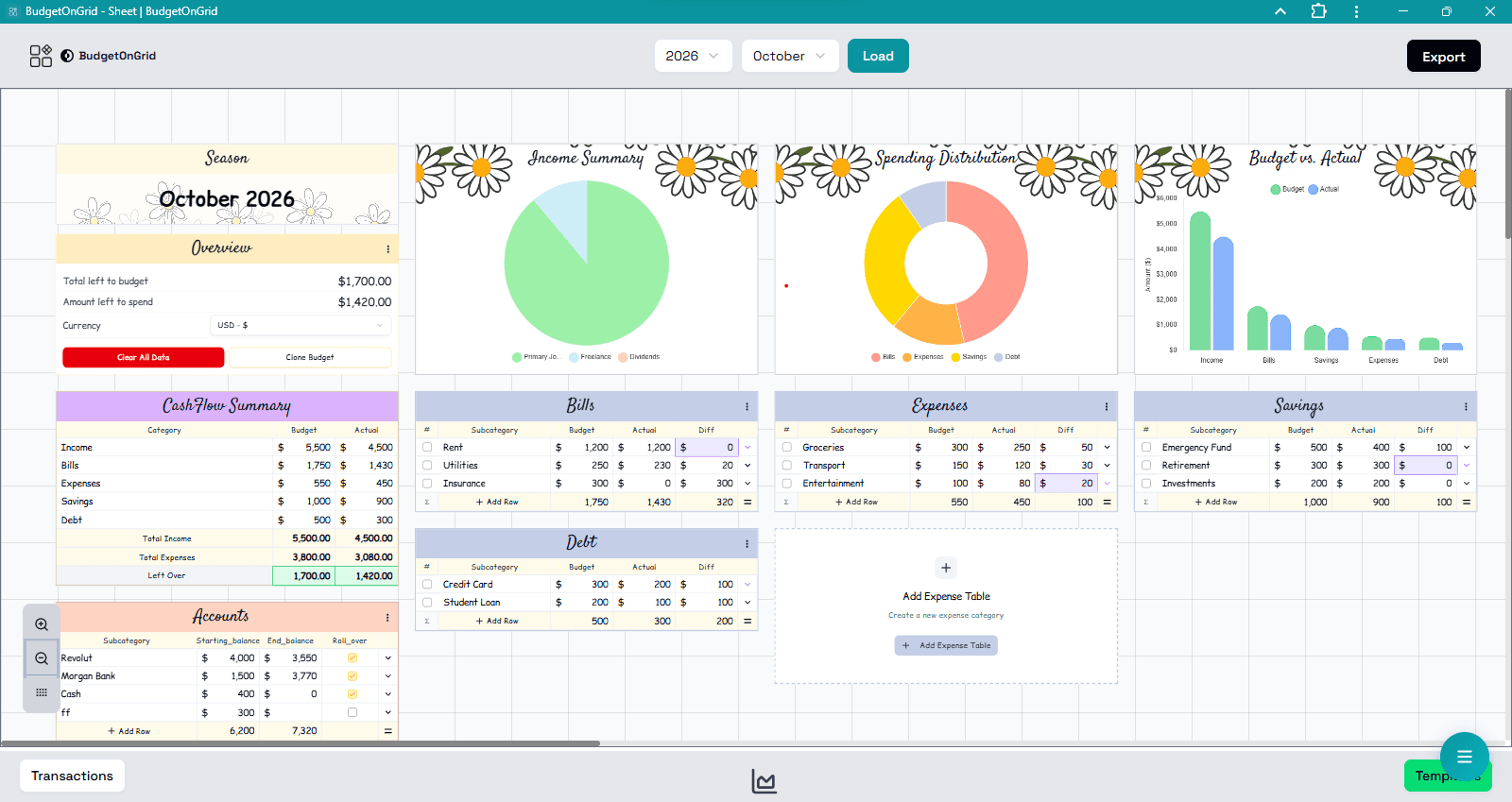
Build your budget your way. No formulas.
Make your own categories and subcategories instead of squeezing into someone else's template. Add a row, rename it, delete it. Nothing breaks.
What you do:
- →Add a table for each category, like Bills, Savings or Pets
- →Add rows for your subcategories, like Rent or Internet, and type your budget for each
- →Add your accounts if you need them, and pick your currency
Track your spending in the Transactions tab
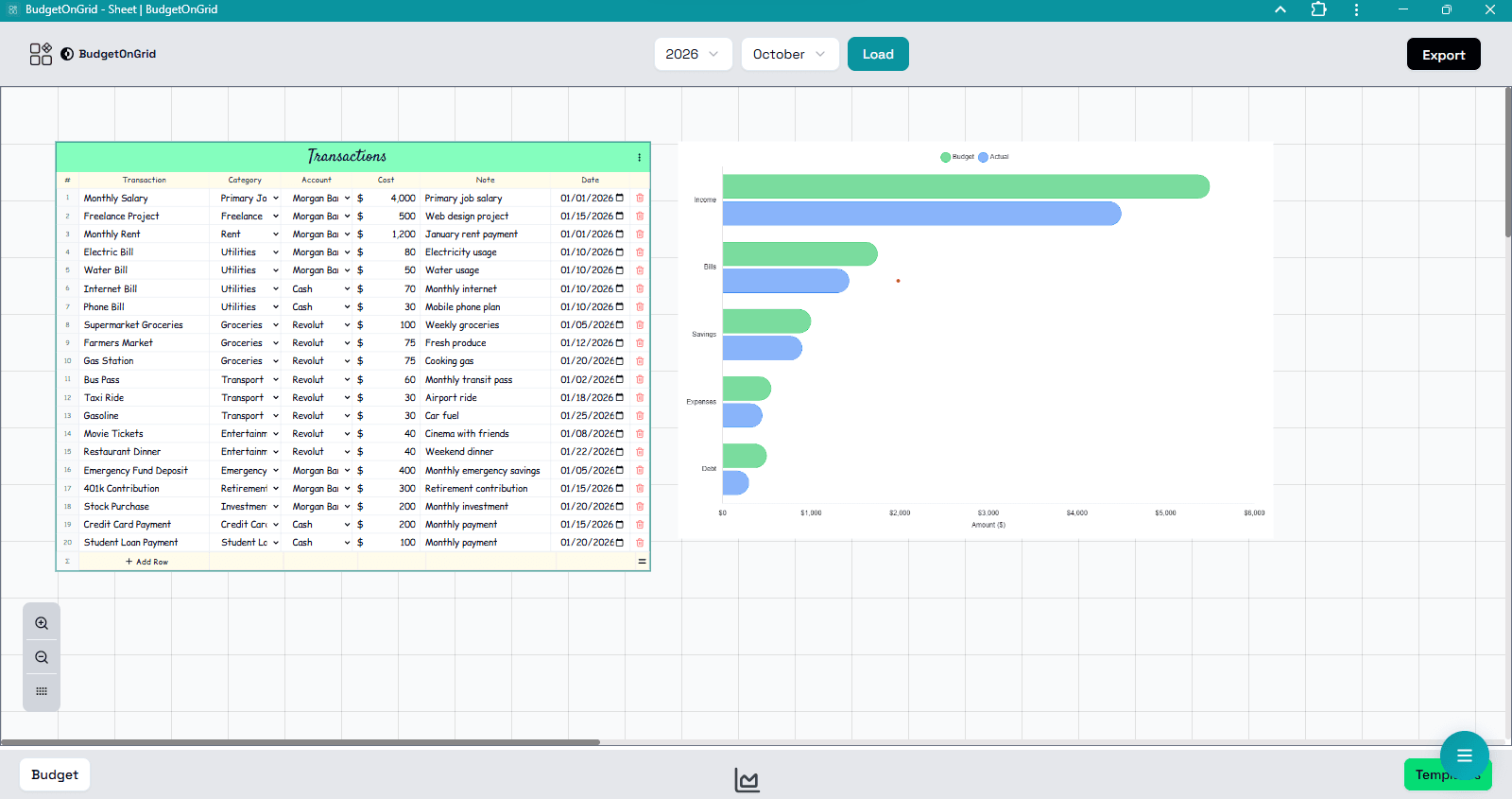
Click Add Row, then fill in the transaction, category, account, cost, date and a note if you want one. The category and account lists are the ones you created, so you never retype them.
What happens when you add a row:
- →The amount goes into the Actual column of that category
- →Your account's end balance, the Cashflow Summary and the charts update by themselves
- →The Budget vs Actual chart next to your transactions shows when a category is going over
Don't want to type them? Import a bank statement or receipt.
Upload a bank statement, receipt, or screenshot. BudgetOnGrid reads the transactions and puts them in your own categories and accounts. Add import rules, and the same shop always lands in the same category.
Works with PDF, CSV and Excel statements. Import uses credits, and adding transactions by hand is always free.
See it coming before the last week of the month
They say spreadsheets can't tell you when you're over budget. We say they should.
See your whole year in the annual report
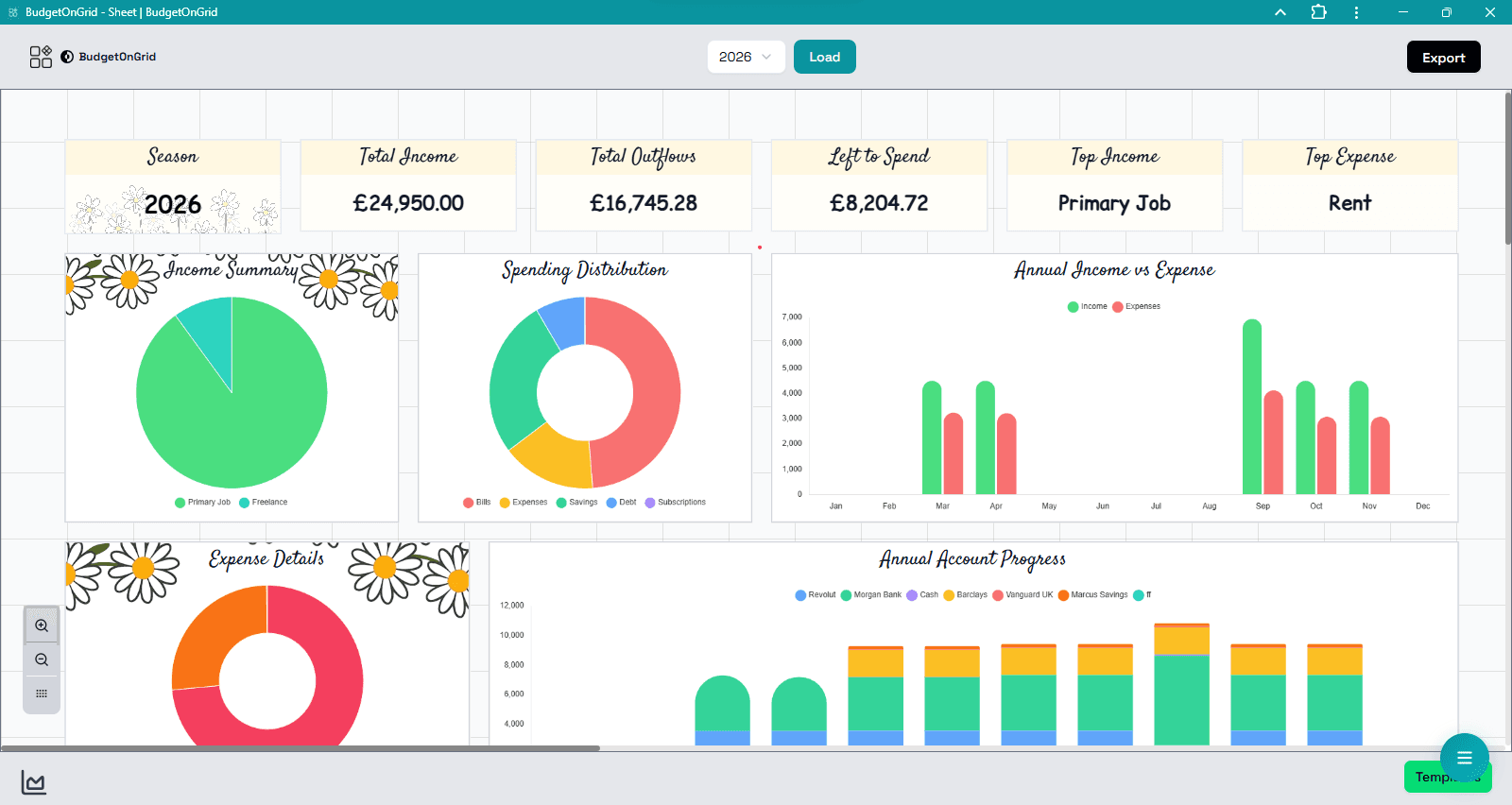
Don't stop at one month. Open the annual report to see how your budget did across the year.
New month? Clone last month's budget.
No more rebuilding the sheet every month. Pick a month, click Clone Budget, and change only what's different.
Your setup carries over
Categories, subcategories and budget amounts are copied from the month you choose.
Actuals start fresh
Last month's actuals and transactions are cleared, so the new month starts from zero.
Account balances continue
Turn on Roll Over for an account and its end balance becomes next month's starting balance.
Export to Excel or CSV anytime
Your data is always yours. It's stored on your own device, and you can take it with you whenever you want.
What you get:
- →A styled Excel file with your formulas still working, or a simple CSV
- →Category totals and the Cashflow Summary included
- →A backup you can keep, since your budget lives on your device
How it works
Sign in and get your budget template
Sign in with Google and a budget template opens with sample data, so you can see how a finished budget looks.
Clear the sample data
One click clears the sample data, so you start with an empty budget.
Create your categories
Add a table for each category, like Bills, Savings or Debt. Then click Add Row in each table and type your subcategories, like Rent and Internet, with a budget for each. Type your income in the Income table too.
Add your accounts (if you need them)
Type in the places you keep money, like a bank account or cash, with the balance in each.
Add your transactions
Type them in one by one, or import a bank statement or receipt. Actuals, totals, the Cashflow Summary and the charts update on their own.
Check your annual report
Open the annual report to see your budget across the whole year.
Pay once. Not every month.
Most budgeting apps charge you monthly while you're trying to save. BudgetOnGrid doesn't.
one time, lifetime access to the core app
The only optional extra is import credits, $5 for 41 pages, if you want BudgetOnGrid to read your statements and receipts. Type your transactions yourself and you never pay anything else.
Questions people ask
Do I need Excel or formula skills?+
No. You set up your categories and type in your amounts. You never write or fix a formula. Totals, Actuals, the Cashflow Summary and the charts update on their own.
Is BudgetOnGrid a monthly subscription?+
No. It's $7 once for lifetime access to the core app. Import credits ($5 for 41 pages) are optional, and you only need them if you want BudgetOnGrid to read your statements and receipts. If you type your transactions yourself, you never pay again.
Do I have to connect my bank account?+
No. BudgetOnGrid never asks you to connect or sync your bank. You either type your transactions or upload a bank statement, a receipt or a screenshot. Statements work in PDF, CSV and Excel.
How do I add my transactions?+
Open the Transactions tab and click Add Row. Fill in the transaction, category, account, cost, date and a note if you want one. The category and account lists come from the ones you created, and the amount goes into the Actual column of that category.
Does it categorize my transactions for me?+
When you use the import feature, yes, into the categories you created with 99% accuracy. If you type transactions yourself, you pick the category.
Is there a yearly view?+
Yes. Open the annual report to see your budget across the whole year, not just one month.
Where is my data stored? Does it sync?+
Your budget is stored on your own device, not on our servers. That's good for privacy, but it also means it won't show up on your phone and laptop at the same time, and clearing your browser data can delete your budget. Export to Excel or CSV from time to time to keep a backup.
Can I use it on my phone?+
Yes. It runs in your phone's browser, and there's an Install App option so it can sit on your phone like a regular app.
Can I export my budget?+
Yes, to Excel or CSV anytime. The Excel file is styled and keeps your formulas working. It doesn't include the charts, and you need to be online to create it.
What happens when a new month starts?+
Use Clone Budget to copy your categories and budget amounts from any month. Actuals and transactions start fresh, and accounts with Roll Over turned on carry their end balance into the new month's starting balance.
Stop fixing your budget. Start using it.
$7 once. No subscription, no bank syncing, no formulas.