How to Copy or Clone Your Budget from the Previous Month with BudgetOnGrid

Updated on by BudgetOnGrid
To copy your budget from a previous month in BudgetOnGrid, open the Budget tab, click Clone Budget in the Overview table, select the month and year you want to copy, and click Clone Budget again. You can clone any month into any month, so you never start from scratch. Only your budget is copied. Actuals and transactions are cleared, and account balances continue if Roll Over is enabled.
This guide shows you how, one click at a time.
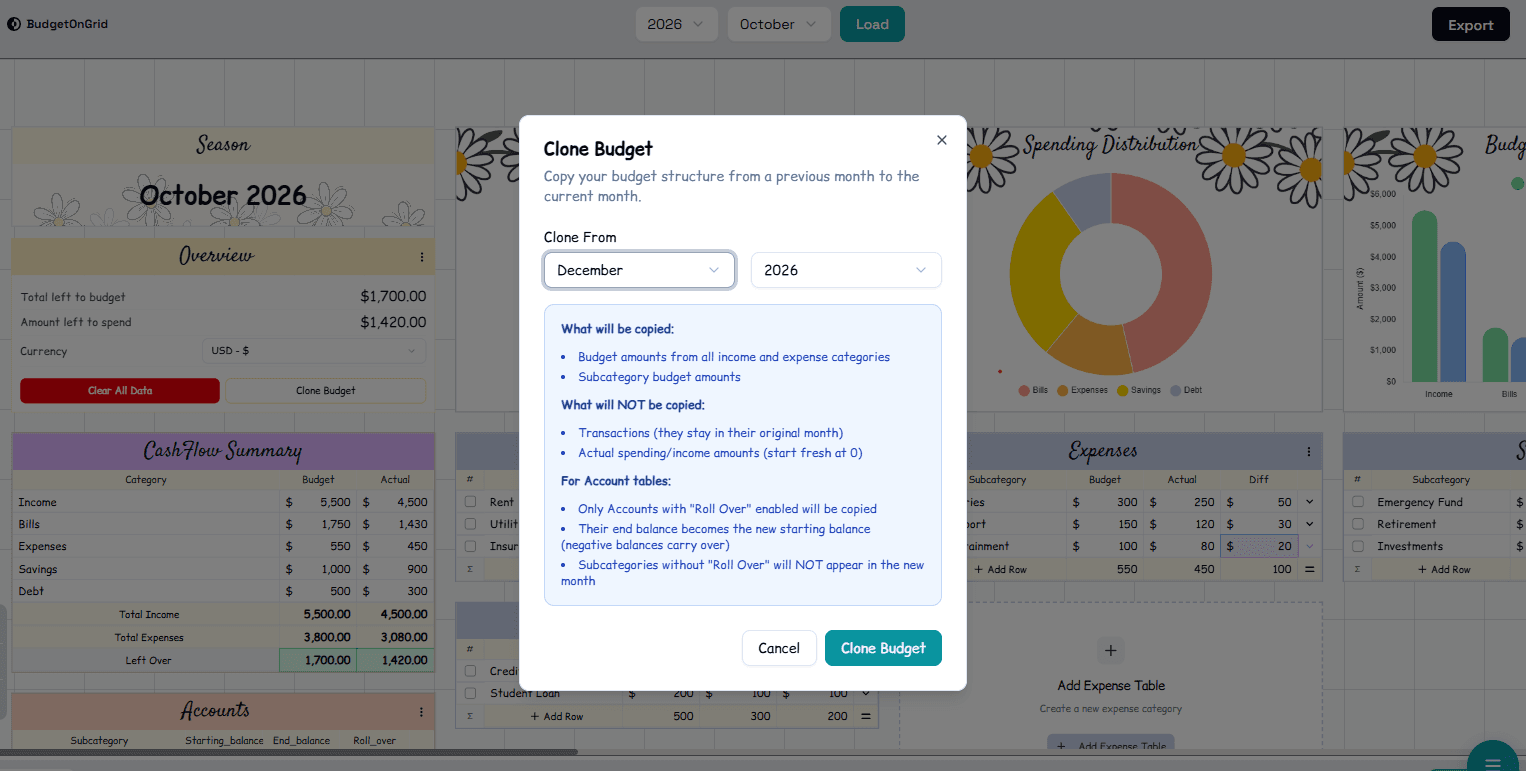
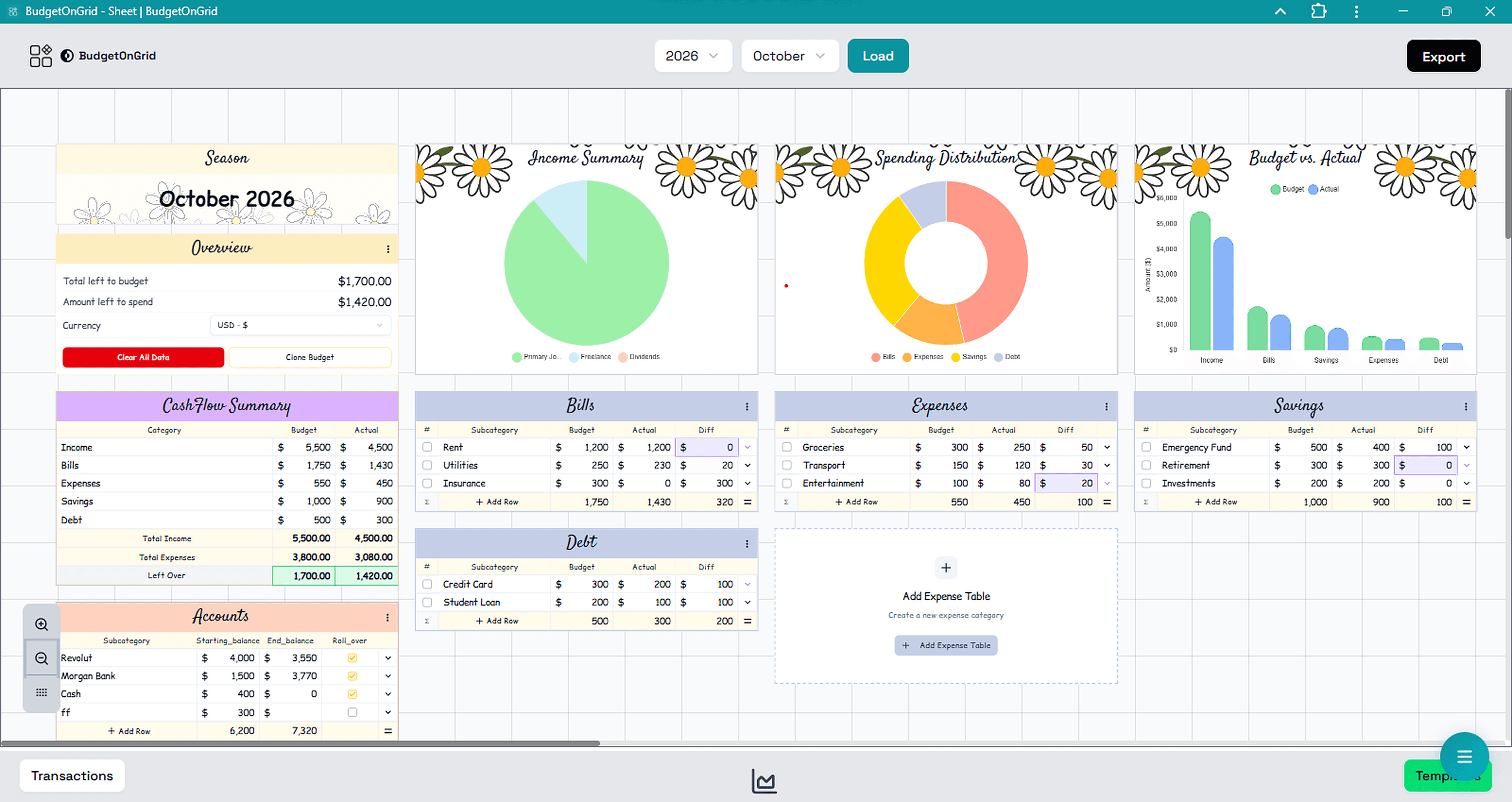
Image: The Clone Budget button in the Overview table.
Key Facts at a Glance
| Topic | Answer |
|---|---|
| Where to clone | The Overview table on the Budget tab |
| Which months can I copy | Any month into any month |
| What is copied | Your budget only |
| What is cleared and reset | Actuals and transactions |
| Account balances | The End Balance becomes the new month's Starting Balance if Roll Over is enabled |
| Excel formulas needed | None |
Before You Start
You need a month that already has a budget. If you haven't built one yet, start with How to Build Your Budgeting Template with BudgetOnGrid.
For Roll Over to work, turn it on for each account you want to continue into the new month. You do this in the Accounts table.
Step 1: Click Clone Budget in the Overview Table
Make sure you are on the Budget tab, then find the Overview table and click Clone Budget.
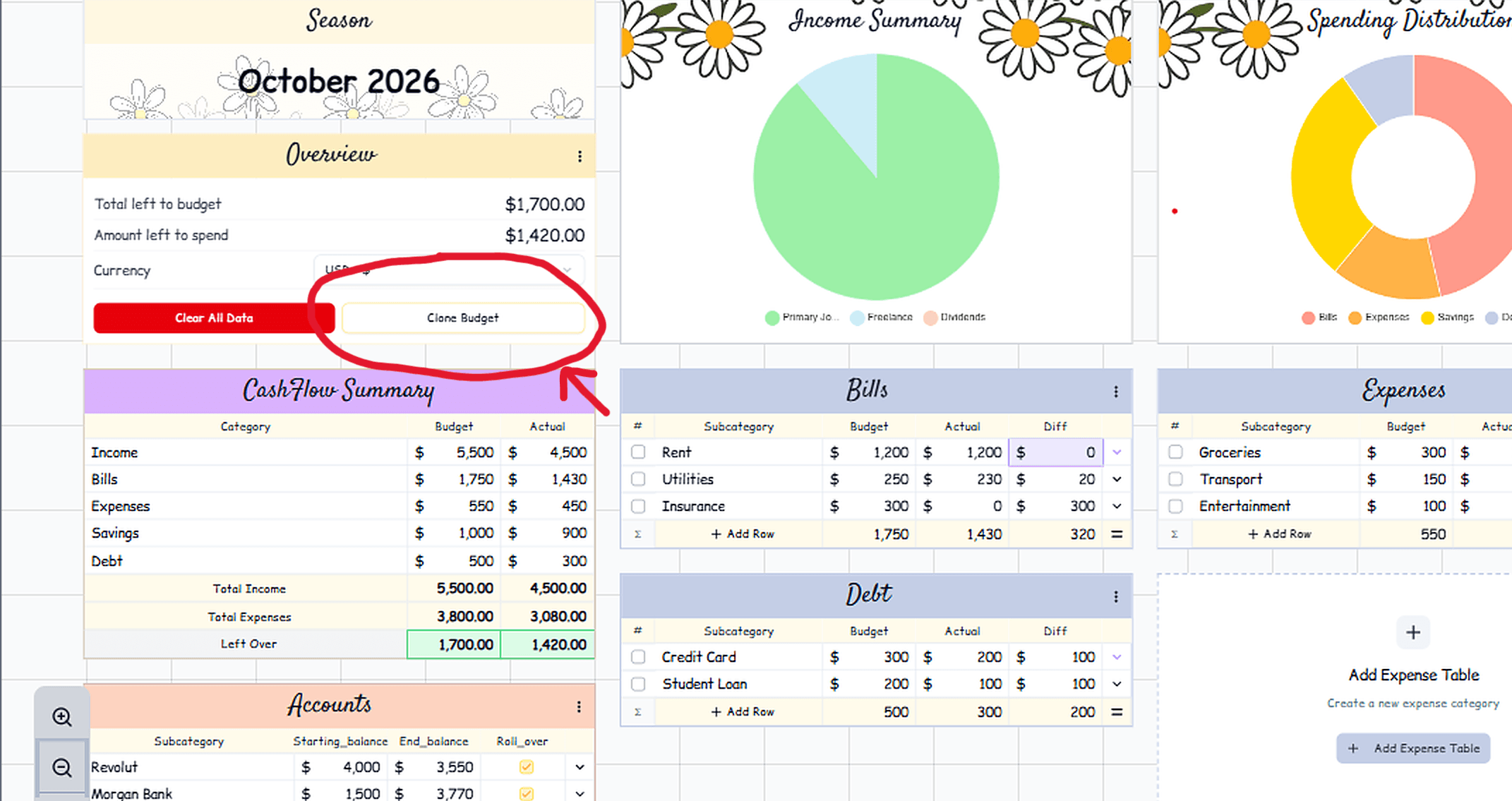
Image: Click Clone Budget in the Overview table.
Step 2: Select the Month and Year You Want to Copy
Choose the month and year of the budget you have already made. This is the budget BudgetOnGrid will copy from.
Step 3: Click Clone Budget
Click Clone Budget to confirm. Your budget is copied, and you can start editing the numbers that are different this month.
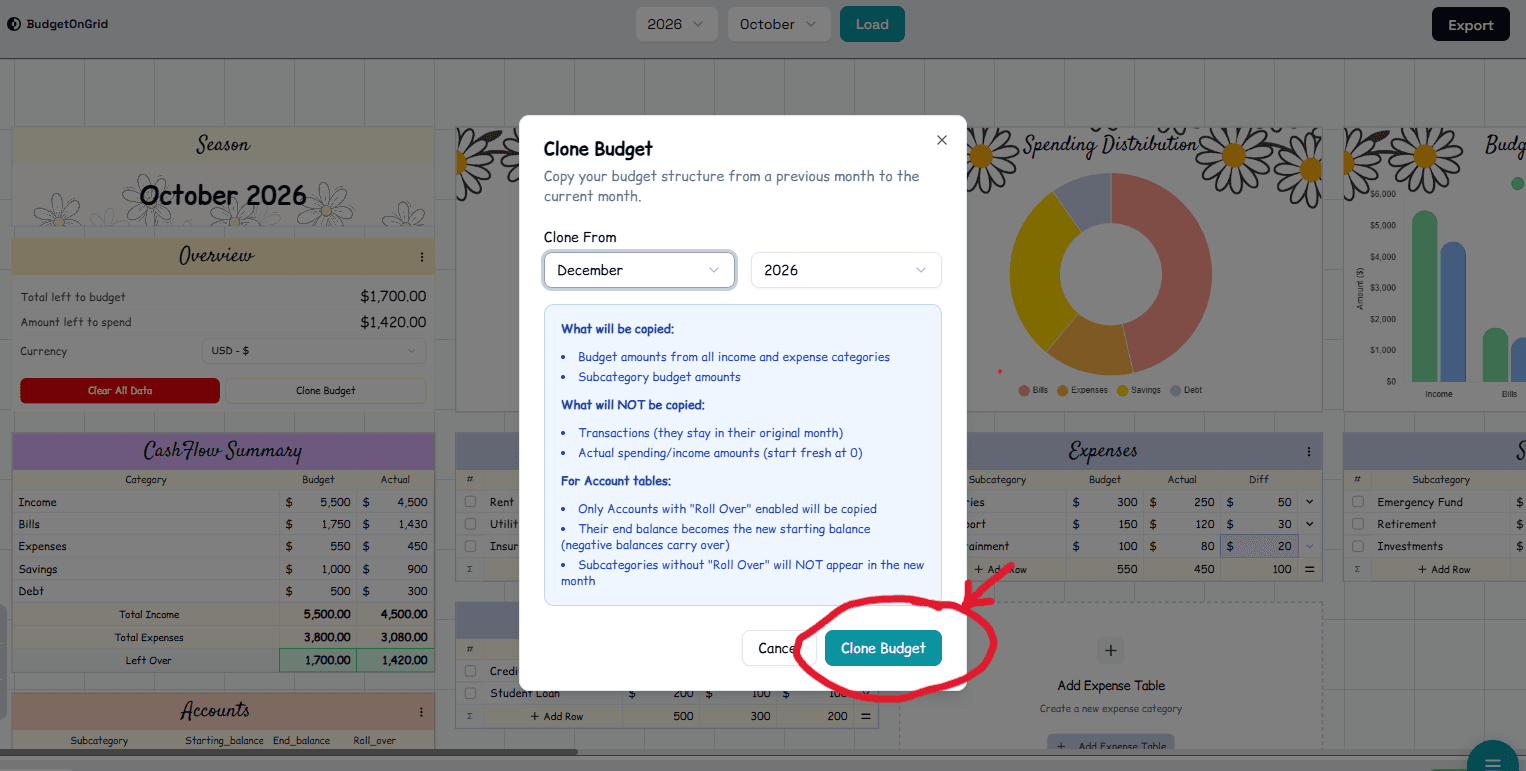
Image: The cloned budget keeps your budget amounts, and the actuals start fresh.
Step 4: Know What Cloning Does
Before you clone, there are three things to know.
Only your budget is copied
Your budget is copied, not your actuals. Your categories, subcategories, and budget amounts come across so you don't have to rebuild them.
Actuals and transactions are cleared and reset
The new month starts fresh. Actuals and transactions are cleared and reset, so you can begin recording this month's spending from zero.
Account balances continue if Roll Over is enabled
In the Accounts table, an account with Roll Over enabled carries into the new month. Its End Balance becomes the new month's Starting Balance.
This is because you usually want to continue from the previous month, so the money left in your account is the money you start the next month with.
| Roll Over setting | What happens to the account |
|---|---|
| Enabled | The End Balance becomes the Starting Balance of the new month |
| Not enabled | The account does not continue its balance into the new month |
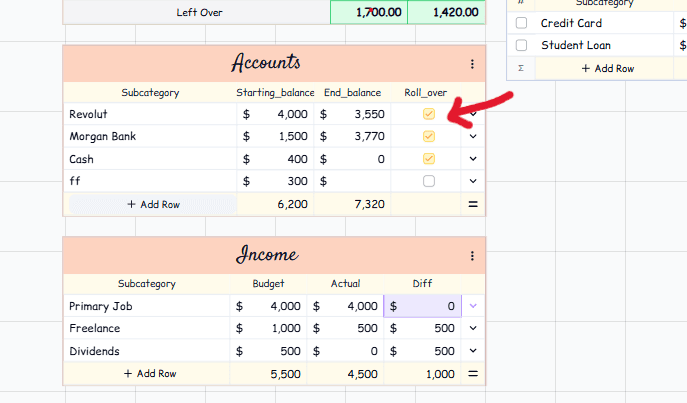
Image: Enable Roll Over on the accounts you want to continue into the next month.
That's It
You don't have to rebuild your budget every month. Click Clone Budget, pick the month to copy, and adjust only what changed. Your budget carries on, your actuals start fresh, and your account balances continue where they left off.
Tips for Cloning Your Budget
- Enable Roll Over before you clone on every account you keep using.
- Update your transactions first so the End Balance is correct before it becomes the new Starting Balance.
- Check your budget amounts after cloning and change anything that is different this month.
- Clone from your most recent month if your budget has changed over time.
Ready to Clone Your Budget?
Open BudgetOnGrid, go to the Budget tab, and click Clone Budget in the Overview table. To keep your new month up to date, follow How to Track Your Expenses or Transactions with BudgetOnGrid, or open BudgetOnGrid now.
Frequently Asked Questions
How do I copy my budget to a new month in BudgetOnGrid?
Open the Budget tab, click Clone Budget in the Overview table, select the month and year of the budget you want to copy, and click Clone Budget. Your budget is copied into the month you are on.
Can I clone a budget from any month into any month?
Yes. You can copy or clone your budget from any month into any month.
What gets copied when I clone a budget?
Only your budget is copied. Your actuals are not copied.
What happens to my actuals and transactions when I clone?
Actuals and transactions are cleared and reset, so the new month starts fresh.
What happens to my account balances when I clone a budget?
If Roll Over is enabled for an account, its End Balance becomes the Starting Balance of the new month. This continues your account balance from the previous month.
What is Roll Over in BudgetOnGrid?
Roll Over is a setting in the Accounts table. When it is enabled, the account continues into the new month and its End Balance becomes the new Starting Balance.
Do I have to start from scratch every month?
No. Clone your previous month's budget, then change only the amounts that are different.
Do I need Excel formulas to clone a budget?
No. Cloning is done with a few clicks, and BudgetOnGrid handles all the calculations automatically.