How to Export Your Budget or Data on BudgetOnGrid

Updated on by BudgetOnGrid
To export your budget from BudgetOnGrid, click the Export button at the top right corner, then choose CSV or Excel. The Excel file keeps your formulas intact, including your category totals, Cashflow Summary, and transactions. It does not include charts, and you must be online to create it.
This guide shows you how, one click at a time.
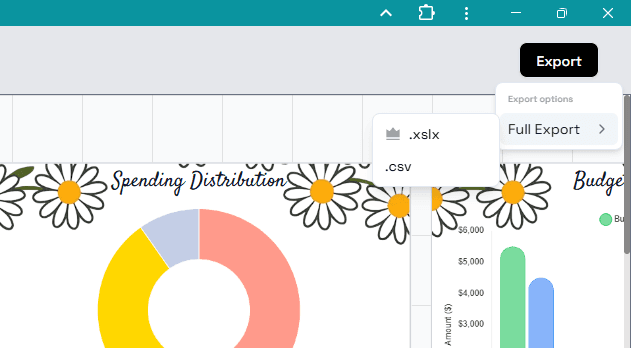
Image: The Export button at the top right corner of BudgetOnGrid.
Key Facts at a Glance
| Topic | Answer |
|---|---|
| Where the Export button is | The top right corner of the screen |
| Export formats | CSV and Excel |
| Formulas in the Excel file | Intact, including category totals, Cashflow Summary, and transactions |
| Charts in the Excel file | Not included, because of a limitation in the MS Excel library |
| Internet needed for Excel export | Yes, a backend service generates the Excel file |
| Excel formulas needed from you | None |
Before You Start
Make sure your budget has something to export. If you haven't built your budget yet, start with How to Build Your Budgeting Template with BudgetOnGrid. To fill in your actual spending, follow How to Track Your Expenses or Transactions with BudgetOnGrid.
Step 1: Click the Export Button
Look at the top right corner of the BudgetOnGrid screen and click Export.
Step 2: Choose Your Export Format
Click the format you want:
| Format | Best for |
|---|---|
| xslx (Excel) | A styled spreadsheet with your formulas working |
| CSV | A simple data file you can open in almost any spreadsheet app |
Your file is then created and downloaded.
Step 3: Know These Things About the Excel Format
Before you export to Excel, there are three things you must know.
You must be online
Excel files are generated by a backend service, which creates the file with all the formulas it needs. If you are offline, the Excel export will not work, so connect to the internet first.
Your formulas are intact
The exported Excel file keeps your formulas working, including:
- Your category totals
- Your Cashflow Summary
- Your transactions
This means you can open the file in Excel, change a number, and watch the totals update, without rebuilding anything.
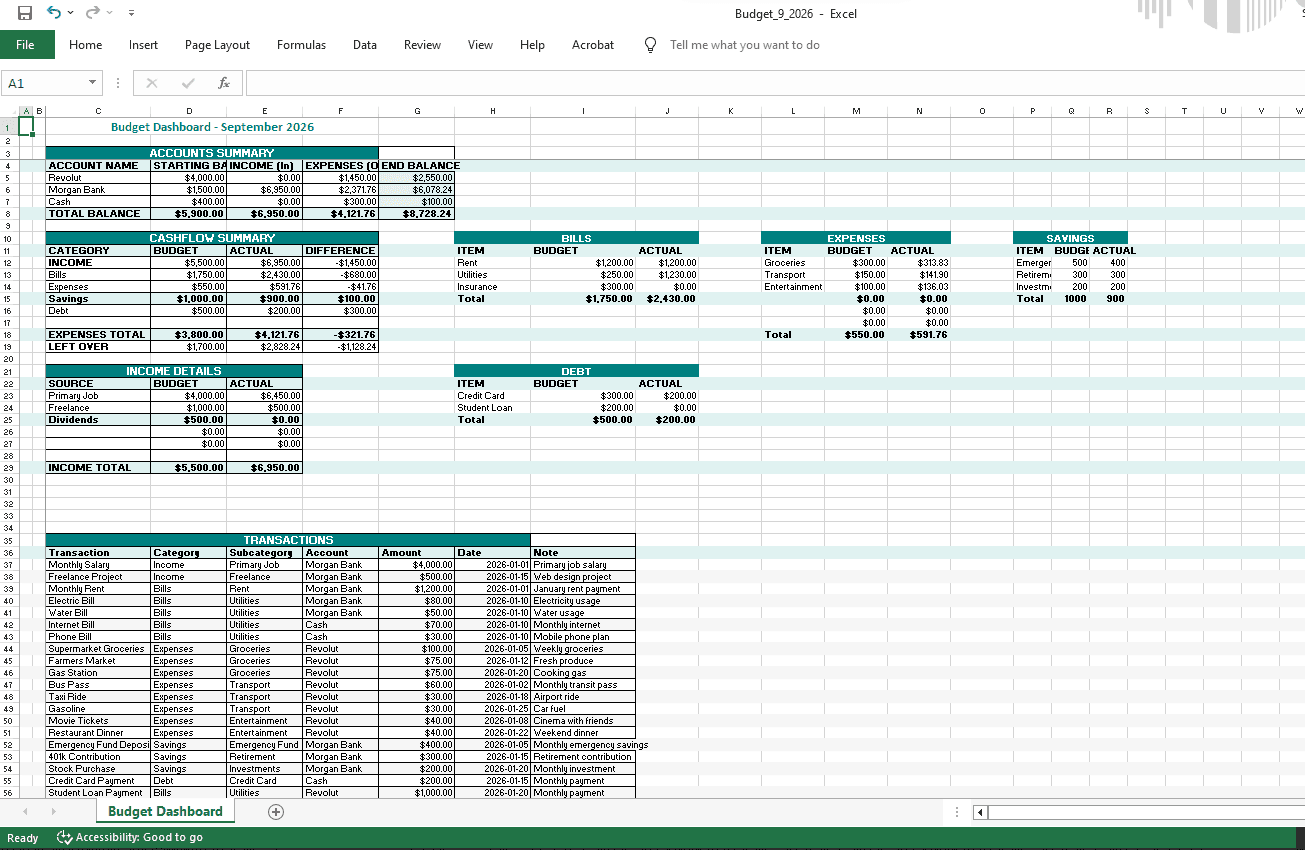
Image: The exported Excel file, with category totals and the Cashflow Summary still calculated by formulas.
Charts are not included
The exported Excel file does not contain your charts. This is a limitation of the MS Excel library used to create the file. Your charts stay available inside BudgetOnGrid, where they keep updating as you record transactions.
That's It
Exporting takes two clicks: Export, then your format. Choose Excel when you want your formulas and a styled spreadsheet, and CSV when you want a simple data file.
Tips for Exporting Your Budget
- Connect to the internet first before choosing Excel.
- Update your transactions before exporting, so your Actual numbers are current.
- Use Excel when you want formulas and styling.
- Use CSV when you want plain data to move into another tool.
- Keep your charts in BudgetOnGrid, since they are not part of the Excel file.
Ready to Export Your Budget?
Open BudgetOnGrid, click Export at the top right corner, and pick your format. Need to set up your budget first? Start with How to Build Your Budgeting Template with BudgetOnGrid, or open BudgetOnGrid now.
Frequently Asked Questions
How do I export my budget from BudgetOnGrid?
Click the Export button at the top right corner, then click the format you want, CSV or Excel. Your file is created and downloaded.
What export formats does BudgetOnGrid support?
BudgetOnGrid supports CSV and Excel.
Do I need to be online to export to Excel?
Yes. The Excel format needs a backend service to generate the file with the formulas it needs, so you must be online.
Does the exported Excel file keep my formulas?
Yes. Formulas stay intact in your exported file, including your category totals, Cashflow Summary, and transactions.
Are charts included in the Excel export?
No. The exported Excel file does not contain charts because of a limitation in the MS Excel library. Your charts remain available in BudgetOnGrid.
Do I need to know Excel formulas to use the exported file?
No. The formulas are already in the file. You can open it and use it as it is.
Should I export to Excel or CSV?
Choose Excel if you want a styled spreadsheet with working formulas. Choose CSV if you want a simple data file to open in almost any spreadsheet app.
Where is the Export button in BudgetOnGrid?
The Export button is at the top right corner of the screen.