The Best Alternative to Tiller: Why Automated Budget Spreadsheets Break

Updated on by BudgetOnGrid
Quick answer
Tiller is a good option for US users who want daily bank transaction syncing in Google Sheets. It costs $99/year and relies on third-party bank connections. BudgetOnGrid offers a customizable budget workspace without spreadsheet formulas. Upload PDF, CSV, or Excel bank statements, and its smart parser extracts and categorizes transactions with 99% accuracy. Your budget data stays on your local device. The core app costs $7 once.
Tiller Money connects your bank accounts to Google Sheets or Microsoft Excel, giving you a way to manage your finances inside a spreadsheet.
For people who enjoy working with spreadsheets, the setup is useful. Transactions and account balances sync automatically each day, while the Foundation Template gives you a starting point for organizing your budget.
There is a lot happening behind those automatic imports. Tiller relies on financial data providers to retrieve transactions, then moves the information into your spreadsheet. When everything works, you save time entering transactions. When a bank connection stops working or a formula gets overwritten, you have some fixing to do.
If you are looking for an alternative to Tiller, these are some of the things worth considering before choosing another budgeting tool.
Where Tiller Excels
Tiller has a few features that explain why spreadsheet users choose the service.
1. Automatic Transaction Imports
Tiller's biggest selling point is its daily background sync. After connecting your bank accounts, transactions and account balances appear in your spreadsheet automatically.
You do not have to download a bank statement and enter every purchase yourself. For someone who checks their budget regularly, this saves time throughout the month.
2. Flexible Spreadsheet Customization
Tiller gives you direct access to your financial data in a spreadsheet. You can change categories, add columns, write custom VLOOKUP formulas, and build dashboards around your budgeting habits.
For example, you might want separate categories for household supplies, subscriptions, and personal spending. You have the freedom to arrange the spreadsheet around your own system.
This works especially well for people who already know their way around Excel or Google Sheets.
3. The AutoCat Engine
Tiller also includes AutoCat, a feature for automatically categorizing transactions.
You create rules based on transaction descriptions and amounts. Tiller then uses those rules to assign categories to incoming transactions and organize your historical records.
For someone who regularly shops at the same stores or pays the same bills, these rules reduce the amount of manual categorization each month.
The Breaking Points: Why Users Seek Alternatives
Tiller's automatic imports depend on several services working together. Bank connections, spreadsheet integrations, and formulas all play a part in keeping your budget updated. Problems with any of these parts affect the experience.
1. Bank Feed Disconnections
Tiller uses third-party financial data aggregators, including Plaid and Yodlee, to retrieve transactions from banks.
Sometimes a bank changes its security requirements or authentication process, and the existing connection stops working. Two-factor authentication changes can also interrupt an account connection.
According to Tiller's own support documentation, resolving an escalated bank connection issue can take 4 to 6 weeks. During this period, automatic imports stop, leaving gaps in your transaction history.
This creates extra work for people who rely on daily imports. You have to check whether the connection is working again and find another way to bring missing transactions into your spreadsheet.
2. Spreadsheet Degradation and Crashes
Google Sheets handles everyday budgeting tasks well, but large spreadsheets and complex formulas introduce performance problems.
In late 2024, Tiller acknowledged incidents involving Google Sheets automation timing out or crashing. These incidents resulted in partial data fills and duplicated account balances.
There is also the risk of accidentally changing a formula. For example, pasting new information into a cell that contains a calculation might overwrite the formula. Your category totals or other budget calculations then stop working as expected.
Finding the affected cell and restoring the formula takes time, especially when the spreadsheet contains several connected calculations.
3. The Clunky CSV Fallback
When a bank connection fails, Tiller offers a CSV importer as another way to bring transactions into your spreadsheet.
You download a CSV file from your bank, upload it to Tiller, map the columns, and check for duplicate transactions.
The process gets more tedious when your bank exports data in a format that needs cleaning before import.
There is also a file format limitation. Tiller's CSV importer does not accept PDF bank statements. If your bank provides statements in PDF format, you need another way to extract the transaction information.
4. The $99 Annual Subscription
Tiller charges $99 per year.
Over five years, you will spend $495 on the service. This is the recurring cost of keeping your bank feeds and spreadsheet integrations running.
For someone who already has a Google Sheets budget template, the price deserves consideration. The main value comes from automatic transaction imports. Whether $99 per year makes sense depends on how often you use the feature and how much time it saves you.
The Alternative: BudgetOnGrid
BudgetOnGrid takes a different approach to spreadsheet budgeting.
The application gives you a familiar grid for organizing income, expenses, savings, and other budget categories. You work with rows, columns, and tables, much like you would in a spreadsheet template.
The Workspace handles the calculations behind the scenes. You also have smart file imports for bringing transactions from your bank statements into your existing budget.
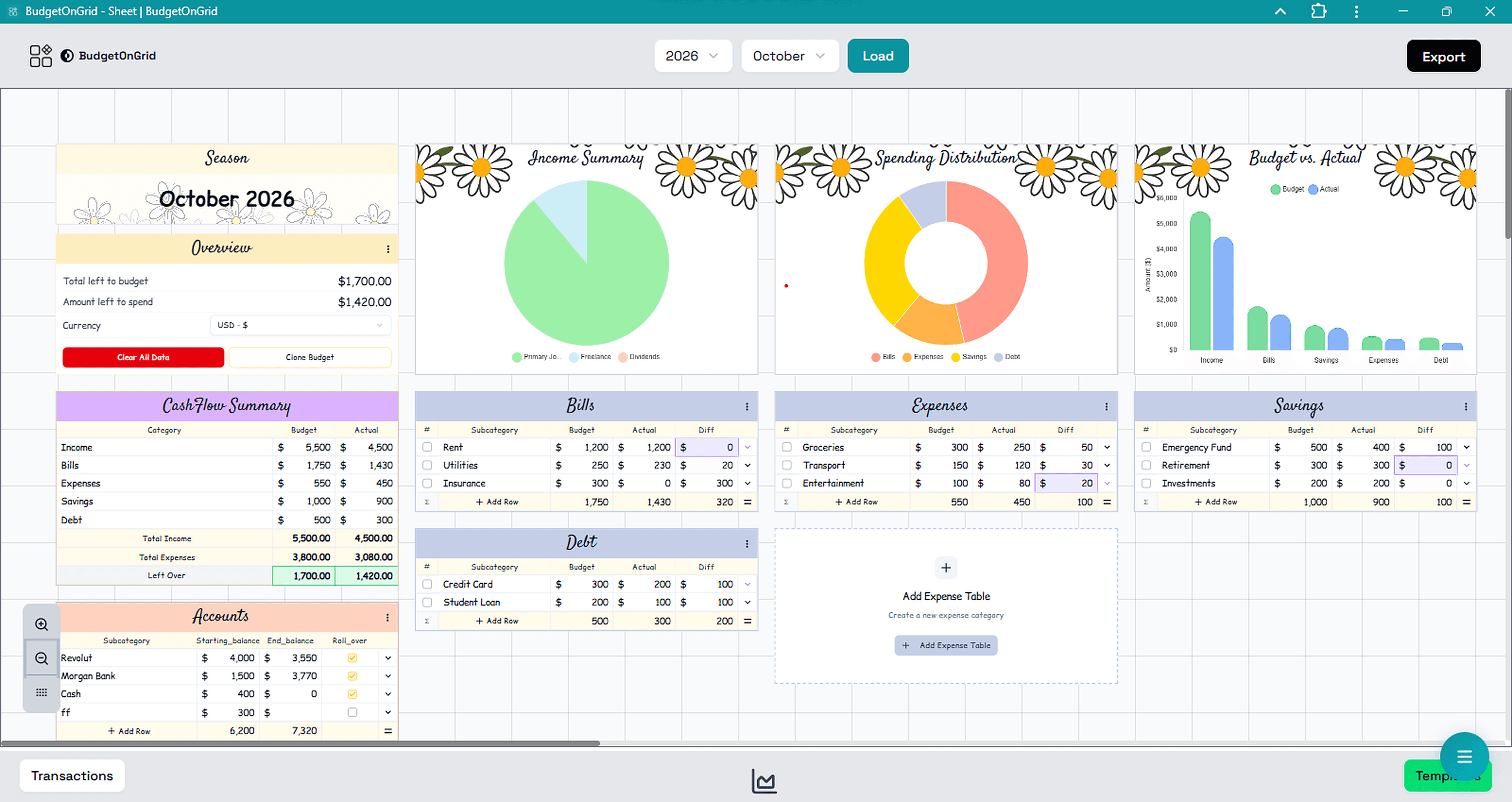
Image: The Workspace in BudgetOnGrid, where you organize your budget, income, and expenses without writing formulas.
1. A Budget Template Without Formulas
BudgetOnGrid gives you a Workspace that works like a customizable spreadsheet. You organize your budget without having to manage formulas.
For example, you can create a table for Bills and add rows for Rent, Internet, and Electricity. You might have another table for Savings, with rows for Emergency Fund and Vacation Savings.
The layout is yours to manage. Add a row when you need another category, rename an existing one, or delete an item when your budget changes.
When you add a transaction, the amount goes into the Actual column of its assigned category. Your remaining balance, Cashflow Summary, and charts update automatically.
You also have cell indicators for monitoring spending. Set an indicator at 70%, for example, and the cell changes color when your spending reaches that percentage of the budgeted amount.
This makes it easier to maintain your budget without having to check or repair spreadsheet formulas.
For a closer look at setting up this structure, explore how to build a budgeting template with BudgetOnGrid.
2. Smart PDF and CSV Imports
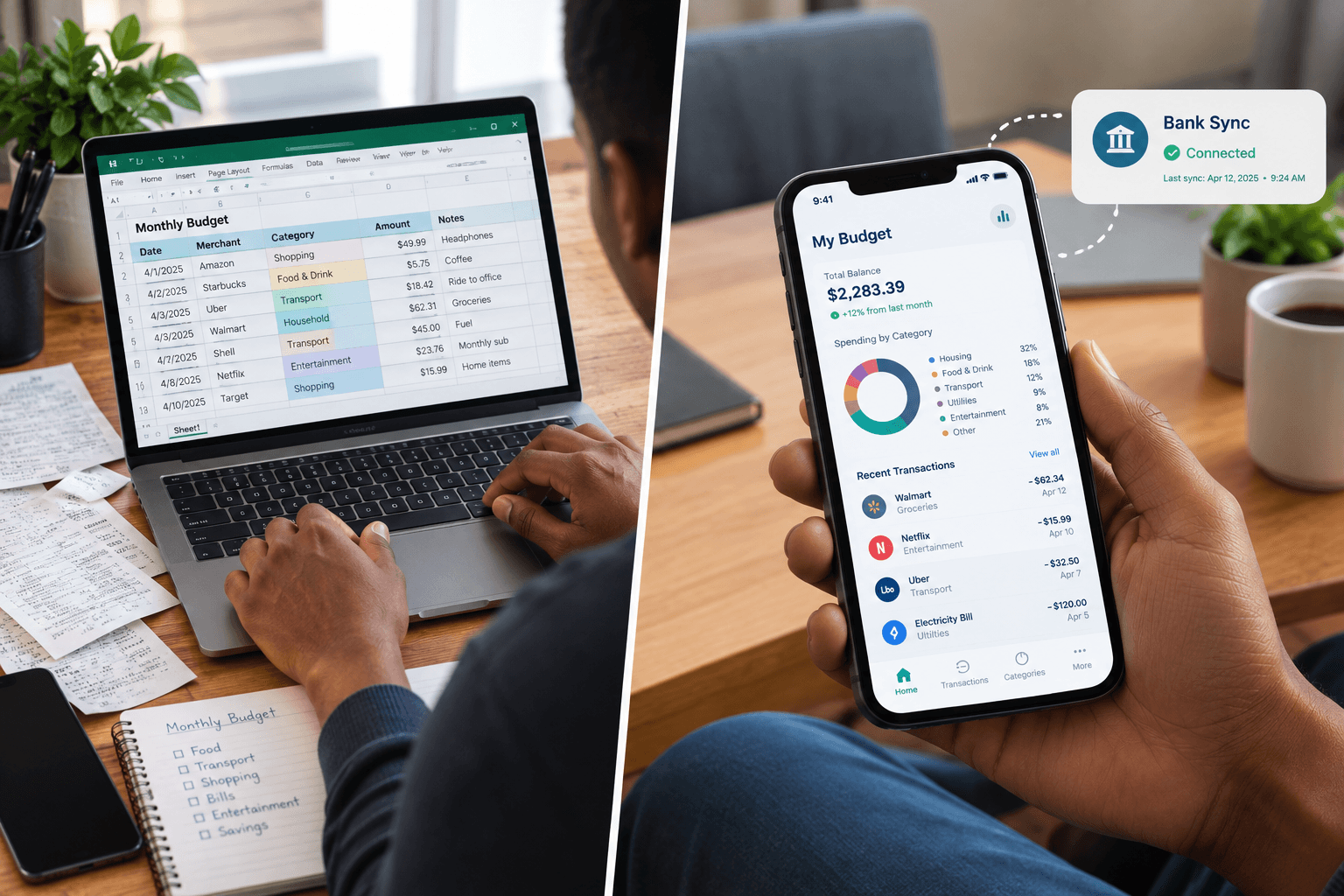
Tiller retrieves transactions through connected bank feeds. BudgetOnGrid works with files you download from your bank.
Download your bank statement or transaction file, then upload the PDF, CSV, or Excel file to BudgetOnGrid.
The smart bank statement and receipt parser reads the document, extracts the transactions, and assigns categories with 99% accuracy.
You also have custom import rules. Suppose you want transactions from a particular supermarket to always go under Groceries. Create a rule for the merchant, and BudgetOnGrid applies it during future imports.
The parser handles transaction extraction and categorization. You spend less time cleaning CSV files, mapping columns, or writing VLOOKUP formulas.
To see how the import process saves time, explore how to track expenses or transactions with BudgetOnGrid.
3. Built-in Charts and Annual Reports
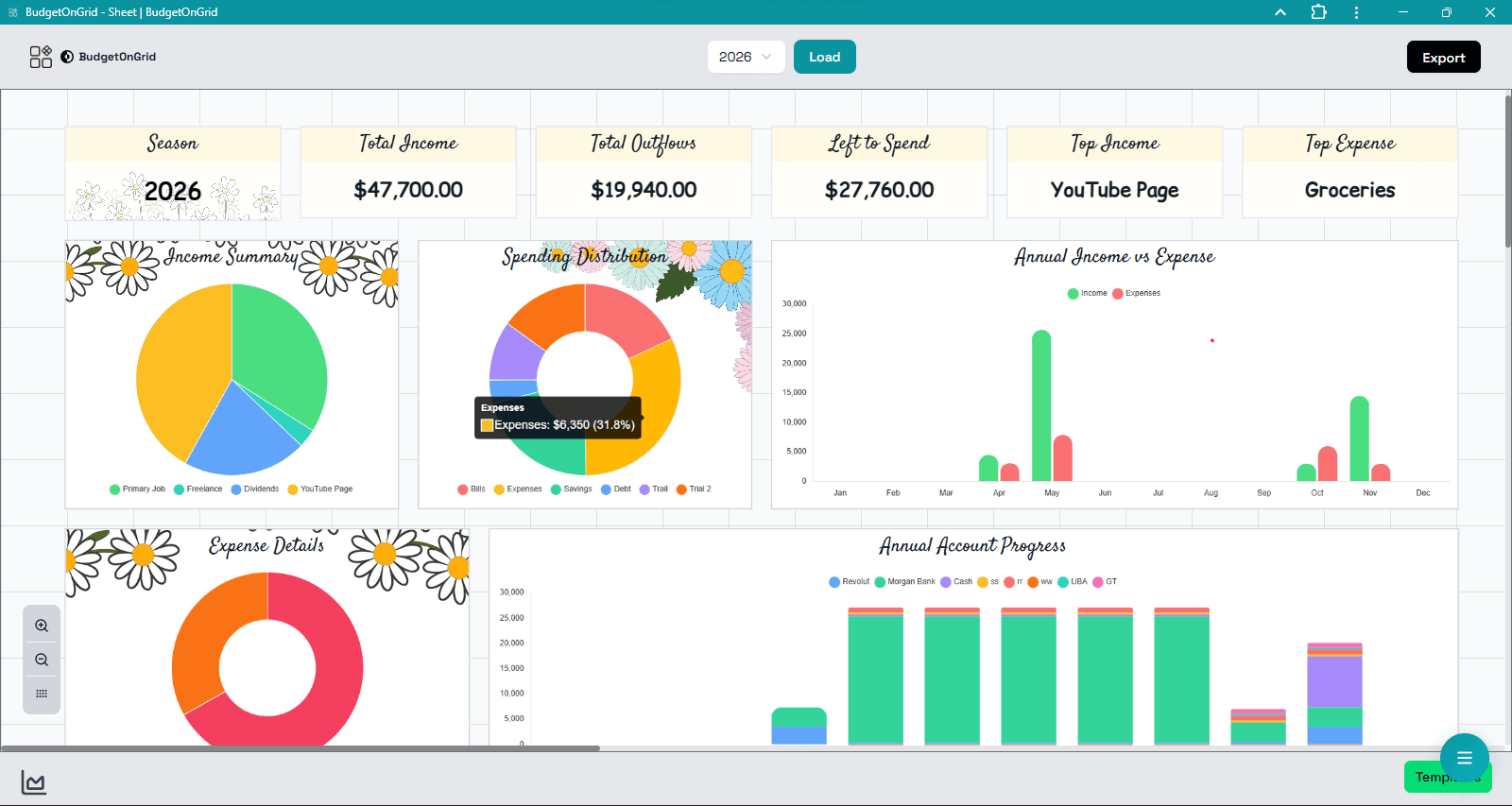
Image: The Annual Report section in BudgetOnGrid, showing your financial activity from January to December.
When you manage your budget in a spreadsheet, creating charts and conditional formatting often requires extra setup.
BudgetOnGrid includes a Budget vs Actual chart alongside your transactions. You get a visual breakdown of how much you budgeted and how much you spent in each category.
The Annual Report gives you a view of your finances across the entire year. You can review income, spending, and category totals from January through December.
For example, you can check how much you spent on groceries over several months or see how your income and expenses changed throughout the year.
4. Data Privacy and Excel Exporting
BudgetOnGrid processes uploaded statements through its backend to extract and categorize transactions. Your actual budget data stays on your local device. The server does not store your personal financial information.
You can also export your budget whenever you need a backup or want to continue working in a spreadsheet.
BudgetOnGrid generates a styled Excel file with working formulas for category totals and the Cashflow Summary. You also have the option to export a simple CSV file.
This gives you a copy of your budget that you can keep, open in Excel, or use outside the application.
If avoiding bank linking is important to you, you can also explore budgeting apps that work without linking a bank account.
If exporting is important, learn how to export budget data with BudgetOnGrid.
5. The $7 Lifetime Fee
BudgetOnGrid's core application costs $7 as a one-time payment for lifetime access.
You do not pay an annual fee to keep using the budgeting workspace. Adding transactions manually is free.
For smart bank statement and receipt processing, optional import credits cost $5 for 41 pages.
You only need these credits when you want the parser to process your statements and receipts. The core budgeting features are covered by the one-time payment.
Summary: Making the Right Choice
| Feature | Tiller Money | BudgetOnGrid |
|---|---|---|
| Core Value | Hands-off daily data sync | Custom budget template with zero formulas |
| Data Import | Automated via Plaid / Yodlee | Smart PDF, CSV & Excel uploads |
| Categorization | Manual AutoCat rules | Smart backend parser (99% accurate) |
| Stability | Google Sheets formulas and integrations | Hardcoded budgeting workspace |
| Month-to-Month | Continuous spreadsheet | One-click "Clone Budget" feature |
| Reporting | User-built custom dashboard sheets | Built-in Annual Report and Cashflow charts |
| Data Storage | Google Drive / Microsoft OneDrive | Local device storage |
| Pricing Model | $99 / year | $7 / one-time core app (optional import credits) |
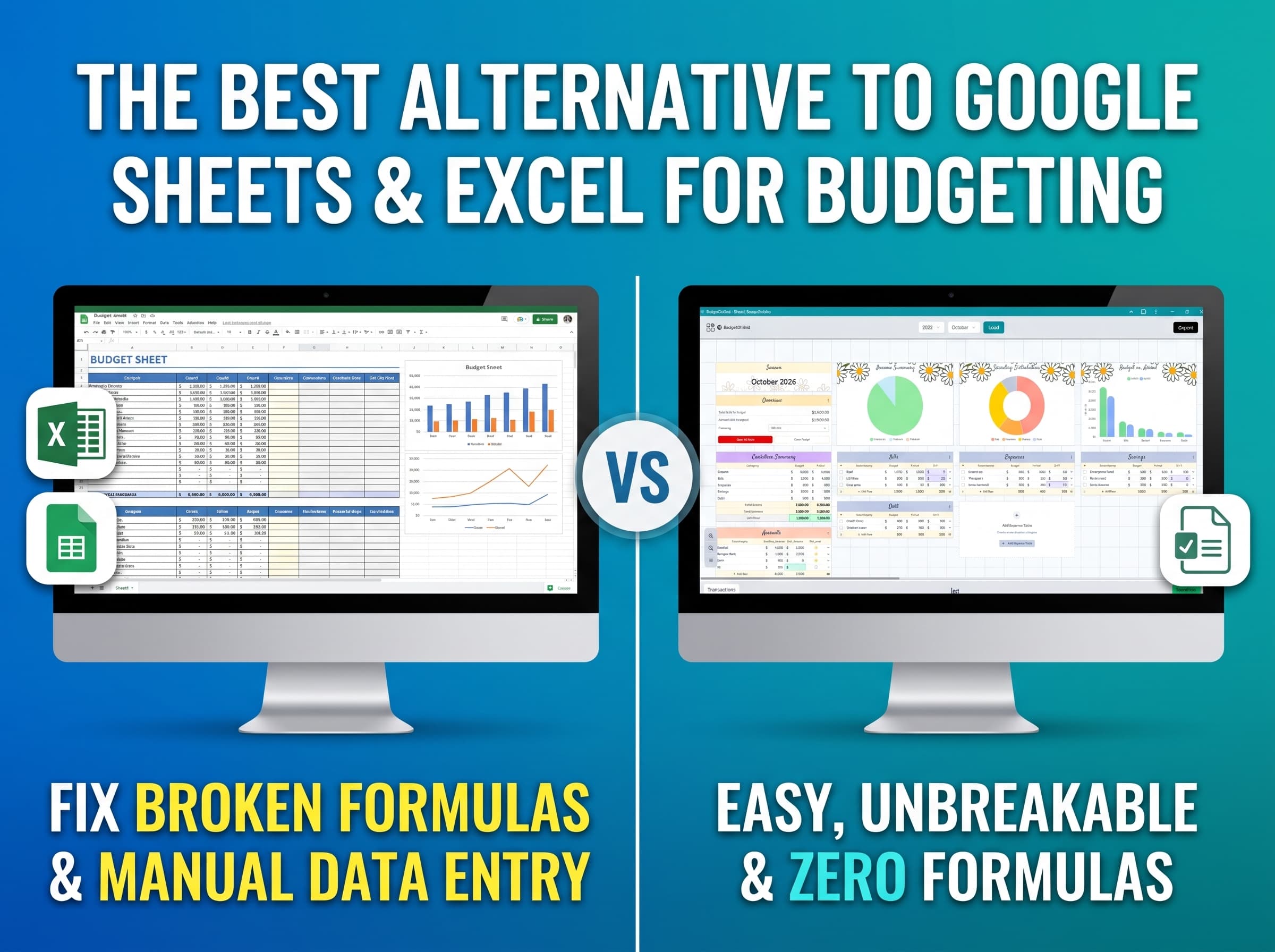
Tiller suits US-based users who want transactions to appear in Google Sheets automatically. Its daily bank feeds and spreadsheet customization make sense if you are comfortable working with formulas and maintaining your own dashboards.
BudgetOnGrid is worth considering if you prefer the layout of a budget spreadsheet and want the calculations handled automatically. You organize your categories and budget amounts, then import transactions from downloaded bank statements whenever you need to update your figures.
Think about how you currently manage your budget, how often you need new transactions, and whether the annual cost of automatic syncing makes sense for your routine.
Do I need Excel or formula skills to use BudgetOnGrid?
No. You do not need to write formulas. The calculations, Cashflow Summary, and charts are built into the application. You enter your categories and budget amounts, and BudgetOnGrid handles the calculations automatically.
Is BudgetOnGrid a monthly subscription?
No. The core application costs $7 as a one-time payment for lifetime access. There are no monthly or annual subscriptions. Smart statement processing uses optional import credits, priced at $5 for 41 pages. Adding transactions manually is always free.
Do I have to connect my bank account?
No. BudgetOnGrid does not ask for your bank login credentials or use third-party bank aggregators like Plaid or Yodlee. You update your budget by entering transactions manually or uploading a downloaded bank statement.
Does it categorize my transactions for me?
Yes. Upload a PDF, CSV, or Excel bank statement, and BudgetOnGrid's smart bank statement and receipt parser extracts the transactions and assigns them to your custom categories with 99% accuracy. You can also create import rules for specific shops and merchants.
Where is my data stored? Does it sync?
Your budget data stays on your local device. When you upload a statement for smart categorization, the backend processes the file and returns the extracted information to your device. BudgetOnGrid does not store your personal financial information on its server.
What happens when a new month starts?
You do not need to recreate your budget each month. Use the "Clone Budget" feature to copy your existing setup, including categories, subcategories, and budget amounts. Actual spending starts at zero for the new month, and you can choose to roll over your account balances automatically.
Can I use it on my phone?
Yes. BudgetOnGrid is a Progressive Web App (PWA), so the workspace is optimized for mobile screens. You can access your budget on your phone without dealing with the standard Google Sheets mobile interface.
Is there a yearly view?
Yes. BudgetOnGrid includes an Annual Report feature. You can review your income, spending, and category totals across the entire year.
Can I export my budget?
Yes. You can export your data whenever you need a copy. BudgetOnGrid generates a styled Excel file with working formulas for category totals and the Cashflow Summary. You can also export a simple CSV file.