The Best Alternative to Google Sheets & Excel for Budgeting

Published on by BudgetOnGrid
Quick answer
Google Sheets and Excel give you full control over your budget, but maintaining formulas and entering transactions takes time. BudgetOnGrid offers a spreadsheet-style budgeting workspace with built-in calculations. Its smart bank statement and receipt parser extracts transactions from PDF, CSV, and Excel files and categorizes them with 99% accuracy. Your budget data stays on your local device, and the core application costs $7 once.
Spreadsheets remain a popular way to manage personal finances. According to Debt.com's 2026 Budgeting Survey, 27.39% of respondents preferred spreadsheets when creating a budget. This puts spreadsheets ahead of mobile budgeting apps, which received 21.70% of responses. Their appeal is easy to understand. You choose your own categories, arrange your tables, and decide how to track your money. (https://www.debt.com/research/best-way-to-budget/)
A 2019 YouGov survey of 3,601 US adults also found that 13% used spreadsheets as their primary method of tracking budgets and spending. Maintaining those spreadsheets takes some work. As your budget grows, formulas, cell references, and manually entered transactions become harder to manage. (https://yougov.com/en-us/daily-results/20190314-dd530-3)
If you are looking for an alternative to Excel or Google Sheets for budgeting, you are likely familiar with the work involved. You want a budget layout you understand, with less time spent maintaining the spreadsheet.
The "Just Use an App" Trap (And Why It Fails)
When people get tired of fixing spreadsheet formulas, switching to a budgeting app often comes up as a solution. Yet many spreadsheet users have specific reasons for staying with their current setup.
- Expensive Monthly Subscriptions: Paying every month to manage your personal finances adds another expense to your budget. For example, YNAB costs $109 per year, while Monarch Money costs $99.99 per year. Spending around $100 annually on budgeting software is a significant commitment when you already have a free spreadsheet.
- Forced Budgeting Methods: Some apps follow specific budgeting methods, such as zero-based budgeting. If you already have a system for tracking your cash flow, learning a different method might feel like unnecessary work.
- Loss of Accountability: Automatic imports make transaction tracking easier, but some people prefer entering their expenses themselves. The process gives them a chance to review each purchase and stay aware of their spending.
- Constant Sync Issues: Bank connections sometimes stop working. You might need to reconnect your account, complete another authentication step, or wait for customer support to investigate the problem. Meanwhile, your budget falls behind.
- Region Restrictions: Automatic bank syncing focuses heavily on the US and Canada. People in other countries often find that their banks are unsupported, limiting access to some of the main features.
The Breaking Points of Spreadsheet Budgeting
Building your own budget in Excel or Google Sheets gives you plenty of control. Maintaining the spreadsheet takes time, especially as you add more categories, transactions, and calculations.
1. Highly Unfriendly for Beginners
Starting a budget in a blank spreadsheet is difficult when you have little experience with Excel or Google Sheets.
You open a blank grid and have to figure out where your income, expenses, categories, and totals should go. Using a pre-made template helps, but some templates contain formulas and instructions that are difficult to understand.
For example, adding a new category might require you to adjust several formulas. If you have never worked with functions like VLOOKUP, figuring out what went wrong takes time.
2. Fragile Formulas
Most budget spreadsheets rely on formulas to calculate totals, balances, and spending differences.
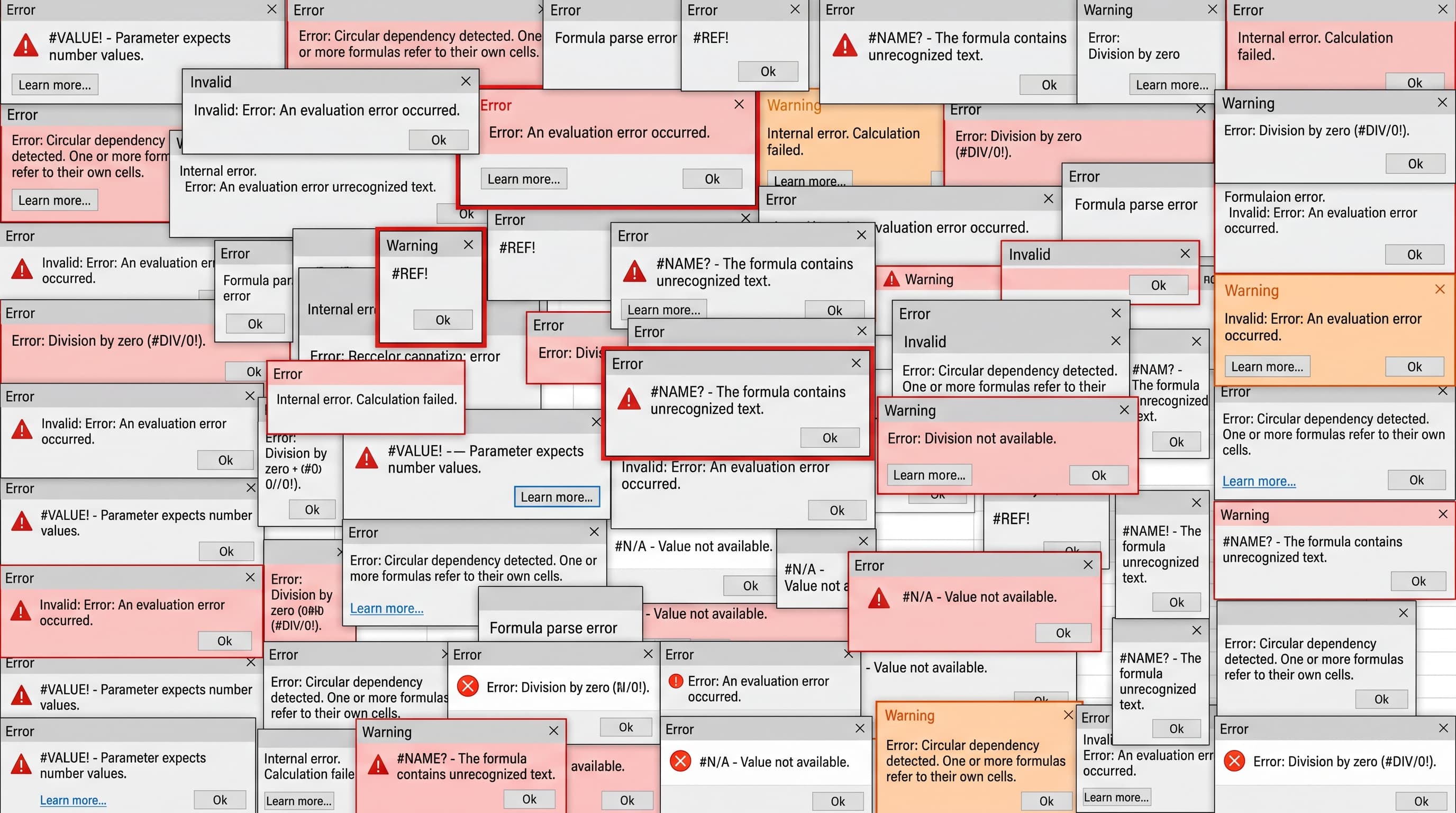
Problems often start when you change the layout. You add a new category row, and the monthly total stops updating. You paste transaction data into the wrong cell, and an existing formula disappears.
Even a well-designed template needs occasional maintenance. The more calculations your budget contains, the harder it becomes to find and fix errors.
3. Manual Data Entry Fatigue
Entering transactions into Excel takes time, especially when you have several purchases to record.
You might download a CSV statement from your bank, paste the information into your spreadsheet, and start cleaning the data. Dates, amounts, descriptions, and categories often need some adjustment before everything fits your template.
If you do this every week or at the end of each month, the work starts to pile up.
4. The Monthly Rebuild
A new month often means preparing your spreadsheet all over again.
You duplicate the previous month's tab, clear the old transactions, check that your formulas are still intact, and update the dates used by your charts.
You also need to carry over your account balances and make sure the new month starts with the correct figures. A mistake during this process affects your monthly totals.
The Best Alternative: BudgetOnGrid
BudgetOnGrid was built for people who enjoy organizing their finances in a spreadsheet but want less maintenance.
The application uses a grid-based Workspace similar to a custom Excel or Google Sheets budget template. You arrange your categories and enter your figures, while the software handles the calculations.
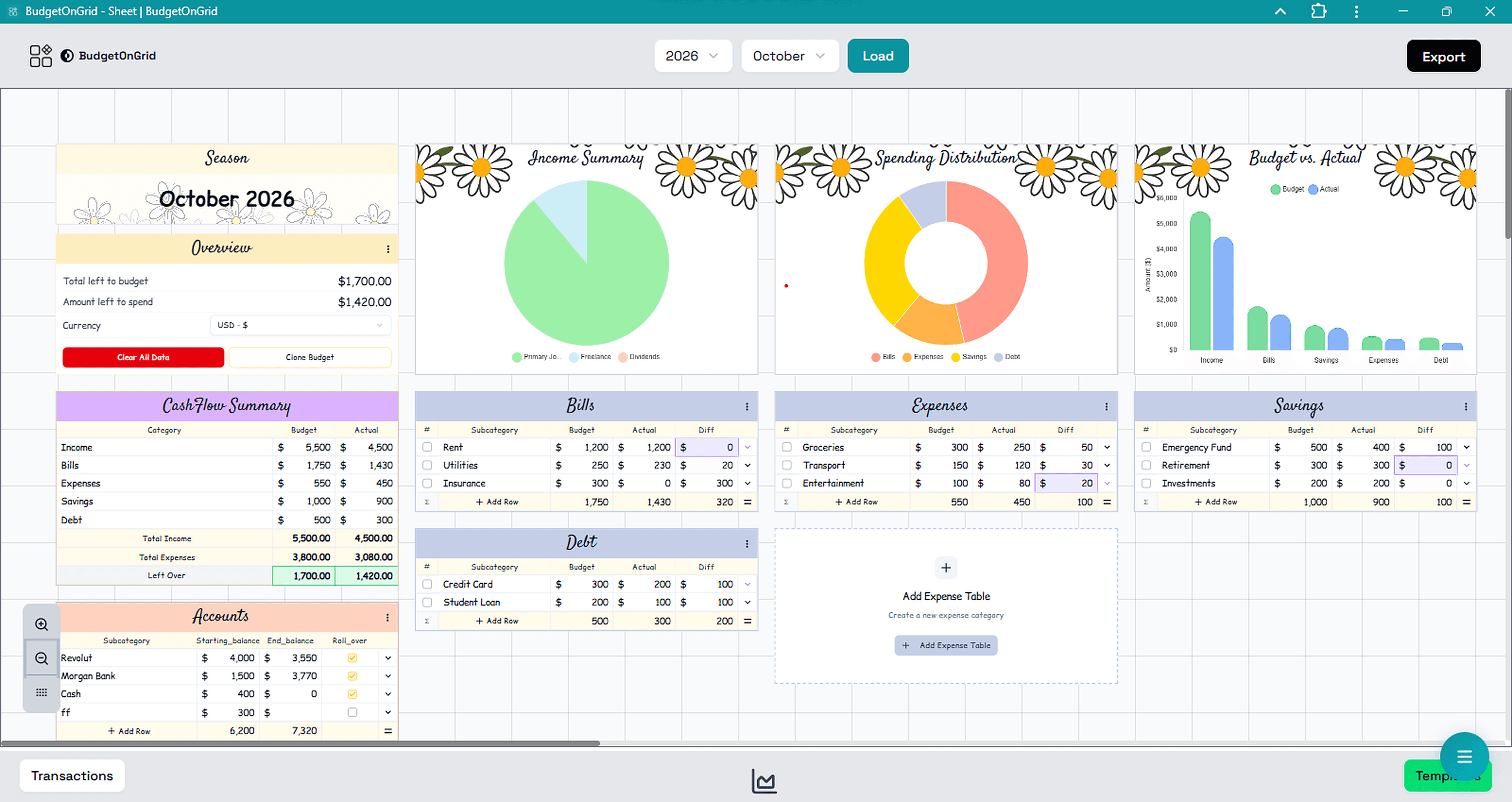
Image: The Workspace in BudgetOnGrid, where you track your budget, income, and expenses without touching a single formula.
1. Build It Your Way (With Zero Formulas)
BudgetOnGrid gives you a Workspace with the familiar layout of a spreadsheet. You create tables for your budget categories, then add rows for individual items.
For example, create a Bills table with rows for Rent and Internet. You might also create a Savings table for your Emergency Fund and other savings goals.
You decide how the tables are arranged. Add a row, rename a category, or delete an item whenever your budget changes.
When you record a transaction, the amount goes into the Actual column of its assigned category. Your account's end balance, Cashflow Summary, and charts update automatically.
For a closer look at setting up categories and indicators, learn how to build a budgeting template with BudgetOnGrid.
2. Beginner-Friendly Setup
You do not need experience with Excel formulas to get started.
When you sign in, BudgetOnGrid opens a sample budget. You get to see how the tables, categories, and calculations work before entering your own information.
One click clears the sample data, leaving you with a fresh Workspace. From there, you enter your income, budget amounts, and categories.
The built-in calculations handle the totals, so you do not have to learn spreadsheet functions before getting started.
3. Optional Smart PDF, CSV, and Excel Imports
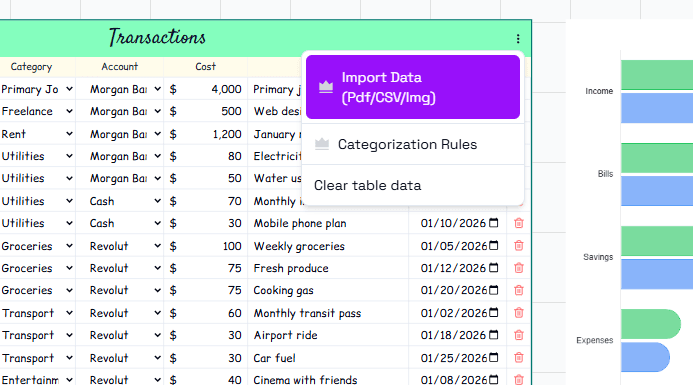
Image: The three dots at the top right of the transactions table open the import options.
Some people prefer entering transactions manually. Typing each expense gives you time to review your purchases and stay aware of where your money goes. BudgetOnGrid supports this, and manual transaction entry is free.
When you want to save time, the optional smart import feature handles the data entry.
Download your bank statement or receipt as a PDF, CSV, or Excel file, then upload it to BudgetOnGrid. You do not need to connect your bank account or provide your bank login details.
The smart bank statement and receipt parser reads the uploaded file, extracts the transactions, and categorizes them with 99% accuracy. You can also create import rules for regular purchases. For example, transactions from your usual supermarket can go straight into your Groceries category.
This saves you from manually copying transaction details and sorting every purchase into the right category.
To see how the import process saves time, explore how to track expenses or transactions with BudgetOnGrid.
4. Built-in Indicators and Annual Reports
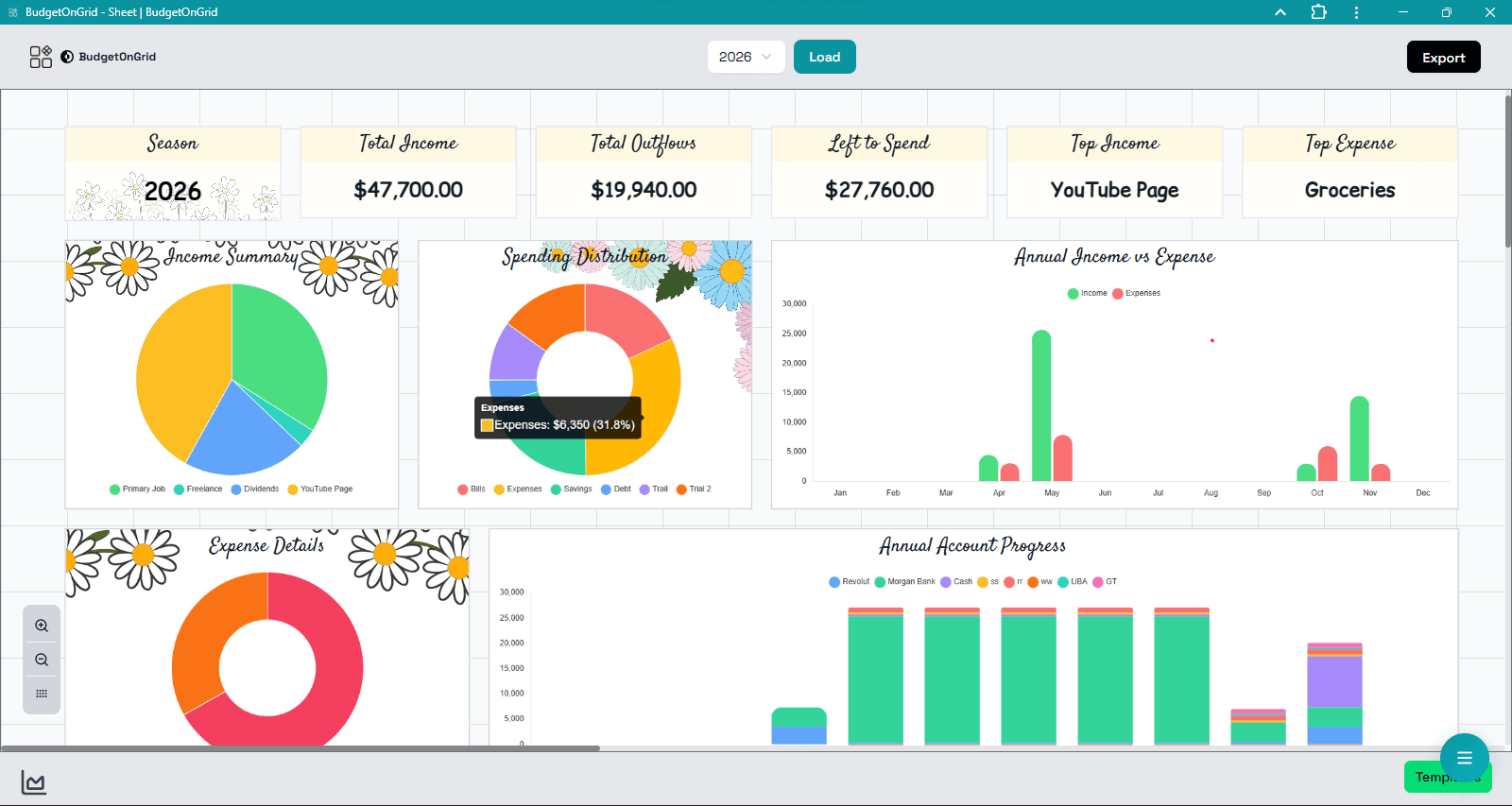
Image: Annual Report Section in BudgetOnGrid, an annual dashboard showing your financial reports from January to December.
BudgetOnGrid includes cell indicators to help you monitor your spending.
For example, set an indicator at 70%. When your spending approaches that percentage of the budgeted amount, the cell changes color.
The Annual Report gives you a yearly view of your finances. You can review your income, spending, and category totals from January to December without building a separate dashboard.
5. Seamless Month-to-Month Cloning
Every new month starts with a fresh copy of your budget.
Click "Clone Budget" to carry your existing setup into the new month. Your categories, subcategories, and budget amounts move over automatically.
Your actual spending starts at zero. You also have a switch for rolling over your account balances from the previous month.
This saves you from duplicating spreadsheet tabs and checking formulas whenever a new month begins.
To learn more about this workflow, read how to copy or clone a budget from the previous month with BudgetOnGrid.
6. Local-First Data Privacy
BudgetOnGrid uses a backend to process uploaded bank statements and receipts. No user data is stored on the server.
The parser processes your file and returns the extracted transactions to your Workspace. Your actual financial history stays on your local device.
You do not need to give BudgetOnGrid access to your bank account or share your bank login credentials.
7. The $7 Lifetime Fee
BudgetOnGrid charges a one-time fee of $7 for lifetime access to the core application.
Manual transaction entry is always free. If you want the optional bank statement and receipt parser to process your files, import credits cost $5 for 41 pages.
You pay once for the core budgeting workspace. Import credits are available when you need automated document processing.
Making the Right Choice
| Feature | Excel / Google Sheets | BudgetOnGrid |
|---|---|---|
| Core Value | Ultimate customization | Custom spreadsheet layout, zero formulas |
| Layout | Total freedom | Flexible Grid Workspace |
| Data Import | Manual entry or raw CSV | Optional Smart PDF, CSV & Excel Uploads |
| Stability | Formulas require maintenance | Hardcoded, Unbreakable Workspace |
| Beginner Friendly | Requires spreadsheet knowledge | Sample data and built-in calculations |
| Month-to-Month | Manual duplication and clearing | One-click "Clone Budget" feature |
| Pricing Model | Free (or MS Office subscription) | $7 / One-Time Core App |
If you already know Excel or Google Sheets well, you might enjoy building your own budget with formulas, pivot tables, and custom dashboards. You have full control over the layout and calculations.
If maintaining your spreadsheet takes too much time, BudgetOnGrid offers another way to manage your finances. You get a familiar grid, built-in calculations, and optional imports for your bank statements. The core application costs $7 once.
Do I need Excel or formula skills to use BudgetOnGrid?
No. You do not need to write a single formula. The math, the Cashflow Summary, and the charts are built into the application. You enter your categories and budget amounts, and the app handles all calculations automatically.
Is BudgetOnGrid a monthly subscription?
No. The core application is a $7 one-time fee for lifetime access. There are no monthly or annual subscriptions. The only optional cost is if you choose to buy import credits ($5 for 41 pages) to use the smart statement parser. Adding transactions manually is always free.
Do I have to connect my bank account?
No. BudgetOnGrid never asks for your bank login credentials and does not use third-party data aggregators. You track your spending by either entering transactions manually or uploading a downloaded bank statement file.
Does it categorize my transactions for me?
Yes. When you use the optional import feature to upload a PDF, CSV, or Excel bank statement, BudgetOnGrid's bank statement and receipt parser reads the transactions and automatically places them into your custom categories with 99% accuracy. You can also set specific import rules so a certain shop always lands in the exact category you want.
Where is my data stored? Does it sync?
Your budget data is stored entirely on your local device. Even when you upload a statement for smart categorization, the backend processes the file and returns the data to your device without storing your personal financial information on a server.
What happens when a new month starts?
You do not have to rebuild your budget from scratch. You simply use the "Clone Budget" feature. It copies your setup (categories, subcategories, and budget amounts) to the new month. Your actuals start fresh at zero, and you can choose to roll over your account balances automatically.
Can I use it on my phone?
Yes. BudgetOnGrid is a Progressive Web App (PWA), which means it is fully optimized to work on mobile screens, unlike standard Google Sheets which require constant pinching and zooming on a phone.
Can I export my budget back to Excel?
Yes. Your data is always yours. You can export your data at any time. BudgetOnGrid will generate a styled Excel file, complete with working formulas for your category totals and Cashflow Summary, or a simple CSV file, so you always have a reliable backup.