Why Budget Spreadsheets Become Difficult to Maintain

Updated on by BudgetOnGrid
Quick answer
Budget spreadsheets become difficult to maintain because adding transactions, adjusting categories, and fixing broken formulas requires heavy manual upkeep every month. To prevent broken formulas and reduce repetitive work, use Excel Tables for dynamic ranges, keep transactions in one consistent list, or transition to a formula-free grid tool with a built-in statement and receipt parser.
The answer is not necessarily to download another template or move your budget into a new app. Often, you need a spreadsheet structure that is easier to update, formulas that accommodate new entries, and a less tedious way to get transaction information into your existing budget.
Image: A personal budget spreadsheet with categories, planned amounts, and actual spending.
1. Why Do Budget Spreadsheet Formulas Keep Breaking?
Excel formulas often stop producing the expected results when you insert rows, move columns, overwrite formula cells, or add transactions outside the range covered by a calculation.
For example, this formula only sums amounts in rows 2 through 100:
=SUM(D2:D100)
If you add a transaction in row 101, that amount will not be included. Using an Excel Table or an appropriate dynamic range can help the calculation accommodate additional transactions.
The same issue can affect category summaries. A formula may calculate spending for groceries correctly but fail to include a newly added category because the summary was built around a fixed list.
How to make formulas easier to maintain
- Use Excel Tables for transaction lists that grow over time.
- Keep category names in a dedicated list rather than scattering them across formulas.
- Avoid typing over cells that contain calculations.
- Check formula ranges whenever you change the workbook's structure.
You do not need complicated formulas for every part of a budget. A simple workbook that calculates the right figures consistently is more useful than an elaborate one that needs regular repairs.
2. Why Does Updating a Budget Template Take So Long?
A large part of spreadsheet maintenance has little to do with budgeting itself. You might spend your time copying last month's worksheet, adjusting categories, entering transactions, correcting dates, and checking that the totals still match.
| What you do every month | What makes it difficult |
|---|---|
| Copy last month's worksheet | Changes and formula fixes must be repeated |
| Enter transactions one by one | Large statements take a long time to record |
| Add new budget categories | Existing summaries may need updating |
| Update charts and totals | Fixed ranges can exclude new information |
| Correct formatting | Dates, amounts, and descriptions may arrive in different formats |
One way to simplify the workbook is to keep transactions in a consistent table and build monthly summaries from that data. This reduces duplication and makes it easier to compare one month with another.
The other part of the problem is getting the information into the table. If you are copying dozens of transactions from a bank statement every month, improving your formulas will not remove that work.
3. Why Do Downloaded Pre-made Budget Templates Become Difficult to Use?
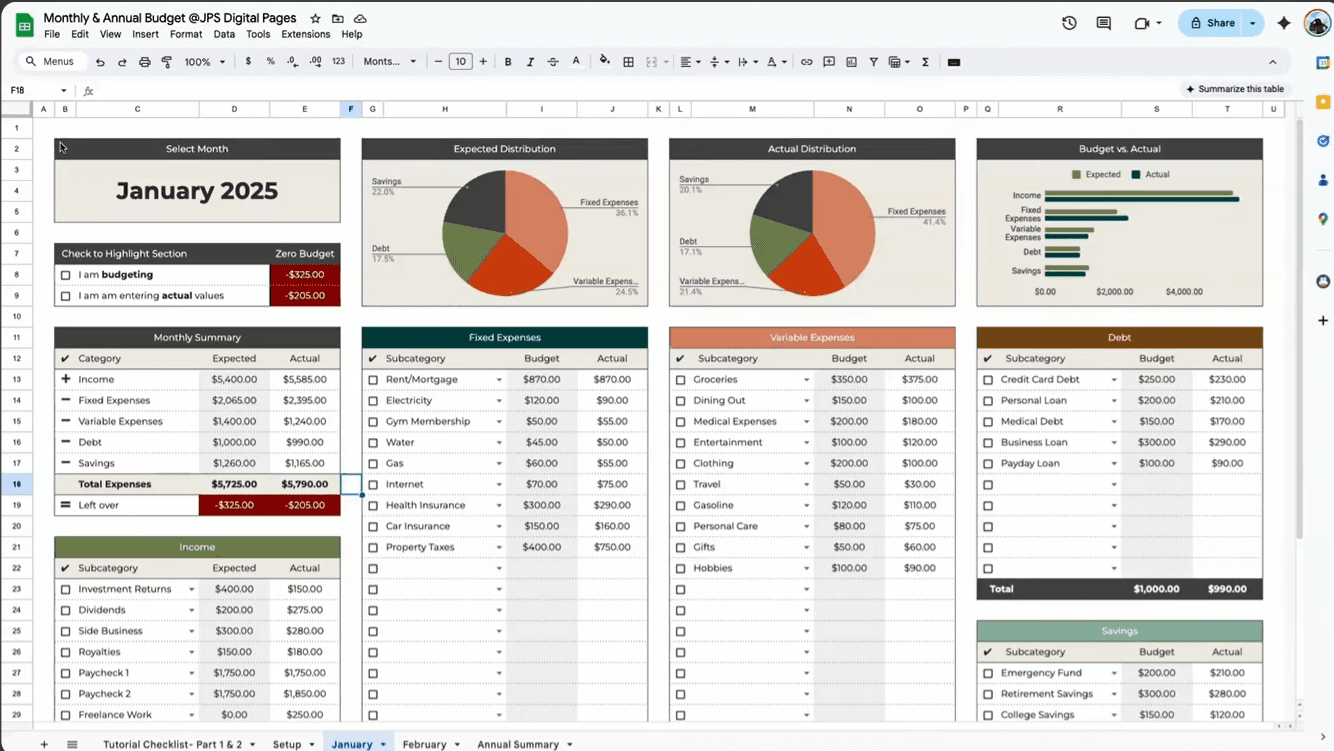
Image: A pre-made budget template from Etsy
A template is built around the person who created it, possibly your favourite creator from TikTok, Etsy or Instagram. Its categories, formulas, charts, and worksheet layout reflect their idea of how a budget should work.
Your own budget may look different. Perhaps you need separate categories for household bills and personal spending, additional income sources, or savings goals that do not fit the original layout.
The trouble begins when changing one part of the template requires adjustments elsewhere.
Before choosing a template, check whether you can add categories, change planned amounts, review actual spending, and keep previous months available without rebuilding the workbook.
A template should give you a useful starting point. It should not make every change feel like a spreadsheet repair job.
If you are considering moving beyond a downloaded template, see the best alternatives to Google Sheets and Excel for budgeting and what they offer compared with a traditional workbook.
4. How Can You Spend Less Time Entering Transactions?
Bank statements often contain the information needed to update a budget, including transaction dates, descriptions, and amounts. Receipts can provide additional details about individual purchases.
The problem is getting that information into the columns of your spreadsheet. Opening a statement and copying every transaction into Excel can take longer than reviewing the budget afterward.
There are three common ways to handle transaction data:
| Method | How it works |
|---|---|
| Manual entry | You copy or type each transaction into your spreadsheet |
| Automatic bank sync | A budgeting service retrieves transactions through a connected financial account |
| Bank statement and receipt import | You upload downloaded documents and process their transaction information for use in your spreadsheet |
If you prefer your existing Excel or Google Sheets template, importing statements offers a way to reduce repetitive entry without committing to a budgeting app or linking your bank accounts through third-party APIs like Plaid.
You still need to check the imported information, but you can avoid typing every line yourself.
Each approach has its own advantages and limitations. You can read more about manual expense tracking vs automatic bank sync to understand the differences and decide which approach suits your budgeting routine.
If avoiding Bank Linking or Syncing is important to you, you can also explore budgeting apps that work without linking a bank account.
5. How to Make Your Existing Budget Spreadsheet Easier to Maintain
You do not have to throw away a template you have spent hours customizing. Start with the parts that cause the most frustration.
i - Keep transactions in one consistent structure
Use columns for dates, descriptions, categories, and amounts. Consistent columns make it easier to filter transactions, calculate totals, and prepare monthly summaries.
ii - Make formulas accommodate new entries
Use Excel Tables or suitable dynamic ranges so that adding transactions does not require you to adjust every calculation manually.
iii - Keep your categories manageable
Create a category list that you can update when your budget changes. Link formulas and dropdowns to that list where appropriate.
iv - Stop repeating the same data-entry work
If transaction entry takes up most of your budgeting time, look at ways to import bank statements and receipts rather than copying each transaction manually.
Check out VLOOKUP and Power Query. They may be a little technical, but when you figure them out, they can go a long way in reducing the manual entry workload.
v - Make spending limits easy to see
Conditional formatting can highlight a category when its spending reaches a threshold you choose. For example, a cell could change color when spending reaches 70% of its budgeted amount.
These changes help with different parts of the problem: better formulas reduce repairs, a consistent structure simplifies calculations, and importing transaction information reduces manual work.
6. What Can Take Over the Repetitive Work?
Maintaining a budget spreadsheet usually forces a choice: type every transaction by hand, or spend hours learning advanced tools like Power Query to automate the file.
A practical alternative is to use a formula-free grid. This approach keeps the familiar rows and columns of a spreadsheet but moves the calculations and data processing to the background.
BudgetOnGrid is built on this exact structure. It provides a customizable layout for organizing a budget, but replaces the fragile formulas and manual data entry with a built-in statement parser.
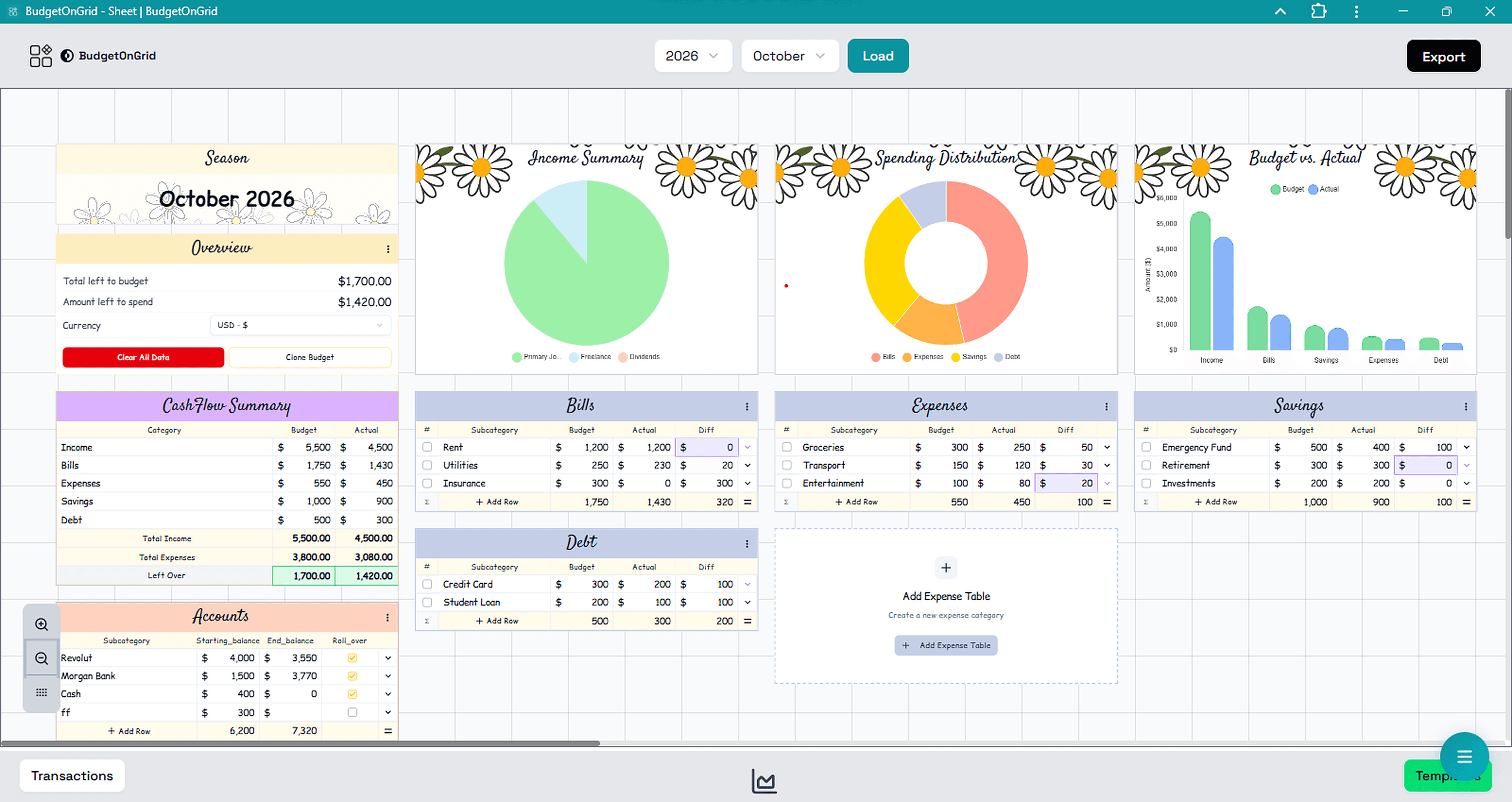
Image: BudgetOnGrid's spreadsheet-style workspace for organizing budget information.
Get transaction information into your budgeting workspace without copying every line or manual entry
BudgetOnGrid lets you type in your expenses manually but also provides an option to import bank statements in PDF, CSV, and Excel formats, along with receipts. It processes the transaction information into structured data that you can review and use in your budgeting workflow.
Instead of manually copying dates, descriptions, and amounts from a statement, you can import the document and work with the extracted information.
You decide when to download your statements and import them. You do not need to sync your bank account or share bank credentials with third-party applications like Plaid.
If you want to see how the process works, learn how to track your expenses and transactions with BudgetOnGrid.
Video: Importing bank transaction information instead of entering each transaction manually.
Organize your budget around your own categories
BudgetOnGrid provides a spreadsheet-style grid with customizable categories and subcategories. You can organize budget information around your own needs instead of starting with someone else's fixed template.
It is intended for people who like working with a grid and want a more structured way to manage their budget, without having to learn spreadsheet formulas.
See when Expenses are approaching their Set Limit
You can set budget limits and choose an indicator threshold. When a category reaches that threshold, its cell changes color.
For example, if you set an indicator at 70%, the change helps you notice that a category is approaching its budget limit. You can then review the figures and decide what to do.
Export your data and continue working in Excel
BudgetOnGrid supports Excel and CSV exports. You can take the exported data into Excel for further analysis or use it alongside the template you already maintain.
If your existing workbook contains custom formulas, charts, or PivotTables, you may need to place the exported data in the correct worksheet and columns. The export does not automatically connect to every formula in your existing workbook.
For a closer look at the process, see how to export your budget data with BudgetOnGrid.
The point is to make the data-entry and budgeting workflow easier while keeping Excel available for the work you want to do there.
Plan your budget beyond a single month
Instead of building a new budget from scratch every 30 days, BudgetOnGrid connects your months together. You can instantly clone your budget from the previous month, roll over your remaining account balances, and track your long-term spending trends using the built-in annual report dashboard.
To learn more about this workflow, read how to copy or clone a budget from the previous month with BudgetOnGrid.
Your financial records stay on your device
BudgetOnGrid uses local-first storage, meaning budget records are kept directly on the device rather than in a cloud database.
When a statement or receipt is uploaded, it is briefly routed through a secure backend parser to extract the transaction details. Once that extracted data is sent back to the device, the original file and raw financial data are immediately discarded. The server does not retain or store the financial records.
This avoids the privacy risks of bank linking. Because the app does not sync with a bank, login credentials are never required, keeping the budget completely private.
If you want to keep working with a spreadsheet-style budget while reducing repetitive data entry and template maintenance, explore BudgetOnGrid
Get back to budgeting, not fixing broken formulas. No Technical Skills needed. Customizable Budget Templates. No Monthly Subscription. No Bank Syncing.
Get StartedFrequently Asked Questions
Why is my budget spreadsheet so difficult to maintain?
Common causes include fixed formula ranges, repeated monthly worksheets, inflexible categories, inconsistent transaction data, and manual entry. Simplifying the workbook's structure and reducing repetitive work can make it easier to maintain.
How do I stop Excel budget formulas from breaking?
Use Excel Tables or appropriate dynamic ranges, keep category lists organized, and avoid overwriting formula cells. When changing a workbook, check that your calculations include new rows and categories.
How can I update my budget spreadsheet faster?
Use a consistent transaction table, automate calculations where practical, avoid recreating worksheets unnecessarily, and import bank statements when manual transaction entry is taking too much time.
Can I keep using my existing Excel budget with BudgetOnGrid?
Yes. You can export data from BudgetOnGrid to Excel and use it alongside your existing budget. You may need to arrange the exported data to match your workbook's layout and formulas.
Does BudgetOnGrid replace my budget template?
BudgetOnGrid offers a spreadsheet-style budgeting workspace with customizable categories, budget limits, statement and receipt imports, annual planning, and Excel or CSV exports. If you prefer working with your own Excel template, you can use the exported data alongside it rather than treating BudgetOnGrid as a replacement for your entire workbook.
Can I import a PDF bank statement into a spreadsheet?
Yes. A compatible importing tool can extract transaction information from a PDF statement and organize it into structured data that can be reviewed and exported. BudgetOnGrid supports PDF, CSV, and Excel bank statement imports.